
Name: TopazPhoto-1.6.0-arm64
Size: 1015.36MB
Files: TopazPhoto-1.6.0-arm64.dmg[1015.36MB]
Version: 1.6.0 | Release: May 2026 | OS: macOS 12.0+
Topaz Photo 1.6.0 for Mac
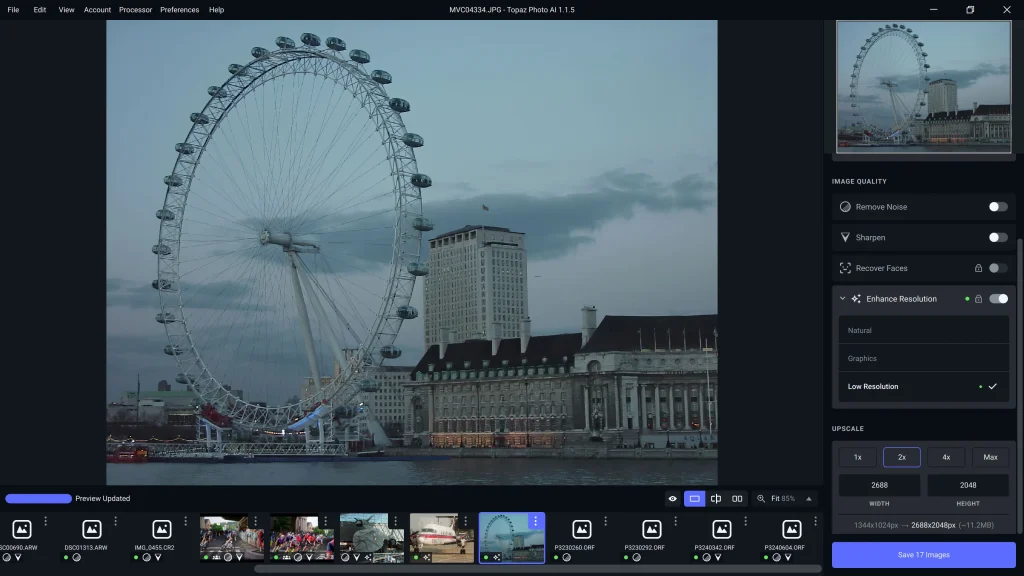
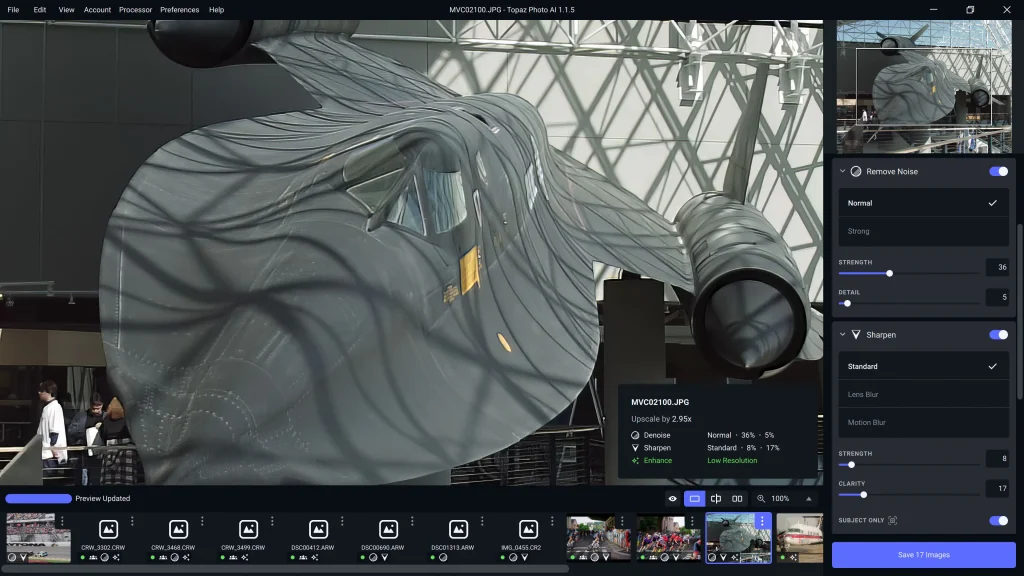
Topaz Photo AI enhances the quality of your images so you can focus on the creative side of photography. Sharpen, remove noise, and enhance photo resolution with advanced technology.
Focus on your creativity, not your tools.
Topaz Photo is good at some things, but bad at others. It can write sentences, but can’t tell a story; it can recommend songs, but can’t compose music. But most importantly for us: AI is exceptionally good at improving image quality, but it’s poor at knowing what to do with it.
We believe that stunning photographs are achieved through artistic vision combined with world-class tools. AI will never be able to replicate human creativity, so your job is still to ensure that vision. But just like a sharper lens or a better camera, Topaz Photo AI allows you to create images that simply weren’t possible with yesterday’s tools.
Your photos at their sharpest.
You won’t always be able to retake a photo if the subject is blurry. Sometimes you won’t even know it until you review your photos on your computer.
In these cases, use Topaz Photo AI to ensure your photos are as sharp as possible. Instead of artificially enhancing edge contrast like traditional sharpening, Sharpen AI naturally corrects the root causes of blur (camera shake, motion blur, and poor focus) for more natural results.
Without blur, sharpness is maintained: crisp, clear details, without halos at the edges or other artifacts.
Get clear, crisp images without noise.
It’s a magical feeling when noise evaporates and crisp details remain.
By studying millions of images, Topaz Photo AI’s noise removal module can effectively understand your image’s content. It can accurately distinguish between real image detail and noise with remarkable precision.
Not all your images will be noisy. For those who are prepared, Topaz Photo AI will give you the best results modern technology can offer.
What’s new in v1.6.0
New models:
- Topaz Photo Recover Faces 3 — portrait-quality face recovery without the 512×512 cap; fewer dot artifacts; any face size; per-face processing on NeuroServer (local on Apple Silicon with macOS 14+, cloud up to 100 MP)
- Sharpen — Noise-Aware — sharpens detail while keeping natural noise and grain (wildlife, sports, low light)
Performance & updates:
- NeuroServer models over 300% faster (Wonder 3, Super Focus v3, Denoise Max, Recover Faces 3)
- Updated Upscale — High Fidelity v3
- Recover Faces 1 retired
Fixes: face-parse crash in image analysis; Remove v2 errors on some devices; grey output on Windows with certain locales
Known issue: intermittent GPU OOM with Recover Faces 3 on 8 GB VRAM (fix planned)
Key features
- Autopilot and manual enhancement: denoise, sharpen, focus, lighting, color, upscale
- Batch processing; plugin support for compatible editors
- Cloud render for models when local hardware is unsupported
Requirements & licensing
- Version: 1.6.0
- Platform: macOS (native Apple Silicon and Intel installers)
- macOS: 14 Sonoma or later recommended for NeuroServer / Recover Faces 3 on Apple Silicon
- Hardware: Apple Silicon or supported GPU; adequate VRAM for large images and AI model
Screenshots
Installation & Troubleshooting FAQ 7 questions
Common issues when installing macOS apps
How do I disable SIP and grant Terminal Full Disk Access?
System Integrity Protection (SIP) shields core macOS files from modification. Some patched apps and installers need SIP disabled temporarily.
Boot into Recovery Mode (hold Cmd+R), open Terminal from Utilities, run csrutil disable and restart.
macOS also blocks Terminal from protected folders until Full Disk Access is granted. Go to System Settings → Privacy & Security → Full Disk Access and toggle Terminal on.
How to disable Gatekeeper and remove quarantine?
Gatekeeper and quarantine can stop modified apps with “damaged” or “unidentified developer” warnings.
To disable Gatekeeper: sudo spctl --master-disable
To remove quarantine from a specific app: xattr -rd com.apple.quarantine /Applications/AppName.app
What to use instead of Launchpad on macOS 26?
Launchpad changed in macOS 26, so opening and organizing apps works differently.
Use Spotlight (Cmd+Space) to search and launch any app instantly. Third-party launchers like Alfred or Raycast are also excellent alternatives. You can also pin frequently used apps directly to your Dock for one-click access.
Why do I see security warnings when opening an app?
“App Not Downloaded from Mac App Store” — macOS blocks the app when security settings only allow App Store downloads. Go to Privacy & Security and permit apps from identified developers.
“Unidentified developer” — apps not registered with Apple trigger this on first launch. Use Control-click → Open to add a one-time security exception.
“Cannot verify for malicious software” — use Open Anyway in Privacy & Security to approve the app once.
What if the app is damaged or disk image is corrupted?
“App is damaged and can’t be opened” — quarantine flags or post-download changes trigger this error. Fix it with: xattr -cr /Applications/AppName.app
“Disk image corrupted” — incomplete or interrupted downloads often cause corrupted DMG errors. Use a download manager with resumable downloads to get a clean installer file.
How to fix Adobe app installation errors?
Adobe Creative Cloud local installers may fail from the GUI — right-click Install, open Contents/MacOS, and run the Unix executable manually to start the setup.
Adobe Error 1 (Rosetta required) appears on Apple Silicon when Rosetta is missing. Install it with: /usr/sbin/softwareupdate --install-rosetta --agree-to-license
CCXProcess install errors mean Creative Cloud cannot run Intel code on Apple Silicon without Rosetta — install Rosetta the same way, then retry.
Why can’t I install this app on an Intel Mac?
Some releases support only Apple Silicon (M1, M2, M3 and newer) and cannot install on Intel Macs due to architecture mismatch.
Look for universal builds or older releases matched to your processor. Tools like Adobe Activation Tool, QiuChenly, or RiD may offer Intel-compatible versions.
