
Version: 3.5 (3526) | Release: May 2026 | OS: macOS 13.0+
Glyphs 3.5-3526 for Mac Os
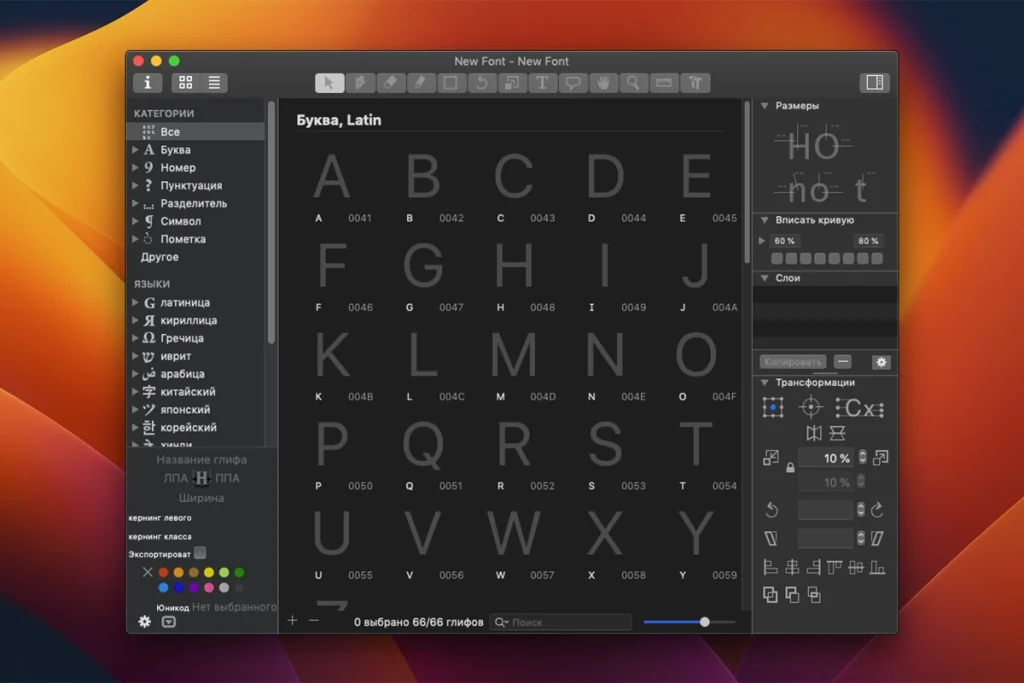
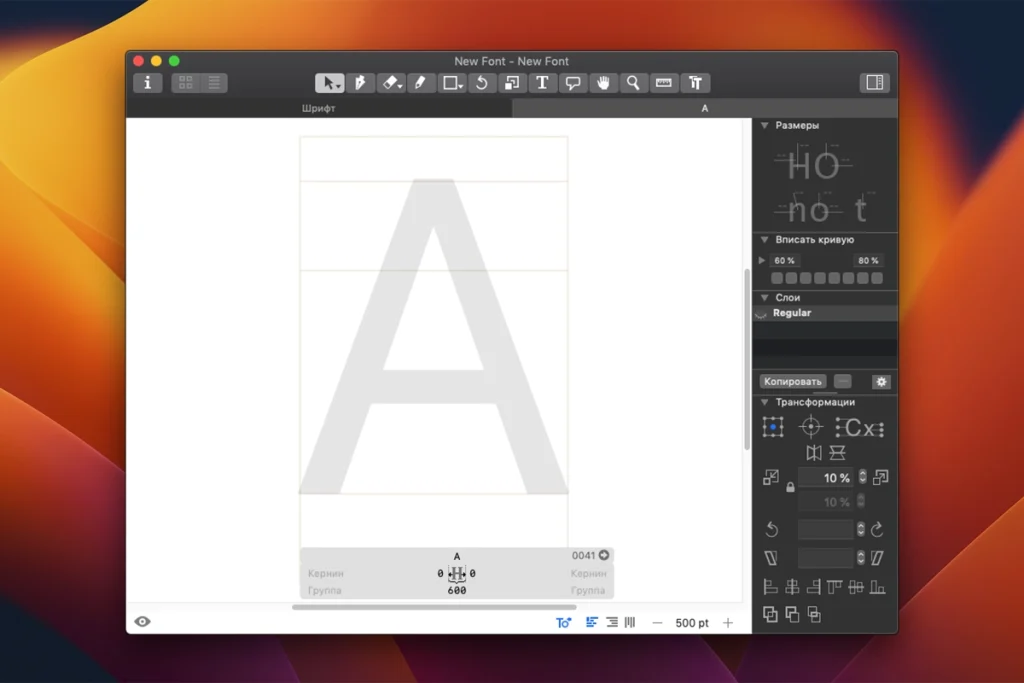
Glyphs 3 from Glyphs GmbH is a professional Mac font editor for drawing type, building variable fonts, and exporting production-ready OpenType—used by foundries and designers worldwide.
Build 3526 (21 May 2026) is the latest Glyphs 3.5 cutting-edge release, with preview, STAT, RTL, and workflow fixes on top of the 3.4 foundation.
What Glyphs does
- High-precision vector drawing for letters, symbols, and icon sets
- Variable fonts — design axes, interpolation, and instance management
- OpenType features, kerning, hinting, and multi-format export (OTF, TTF, WOFF, UFO, and more)
- Smart components, color fonts (COLR), and broad multilingual / OpenType script support
- Plugin Manager plus Python scripting for custom workflows
What’s new in build 3526
- Preview Panel shows content earlier; STAT table improvements
- Fixes for project-window dragging/tabbing, Edit View restoration, and RTL measurement lines
- Kerning preserved when replacing glyphs; ssXX “automatic” feature checkbox fix
- Support for Tulu Tigalari; imatra anchor for iMatra prescriptive code
- Larger allowed coordinates for nodes and anchors; improved error reporting
Recent 3.5 line: UFO round-tripping, VORG/COLR export, smart-component and variable-font fixes, Arabic/Hebrew feature updates, and Export Open Paths for centerline/CAD workflows (earlier 3.5 builds).
Requirements & licensing
- Version: 3.5 (build 3526)
- Platform: macOS 10.11+; Universal (Intel and Apple Silicon)
- License: paid app (~€299); 30-day trial; free updates for licensed Glyphs 3 users; also on Setapp
Homepage https://glyphsapp.com/
Screenshots
Installation & Troubleshooting FAQ 7 questions
Common issues when installing macOS apps
How do I disable SIP and grant Terminal Full Disk Access?
System Integrity Protection (SIP) shields core macOS files from modification. Some patched apps and installers need SIP disabled temporarily.
Boot into Recovery Mode (hold Cmd+R), open Terminal from Utilities, run csrutil disable and restart.
macOS also blocks Terminal from protected folders until Full Disk Access is granted. Go to System Settings → Privacy & Security → Full Disk Access and toggle Terminal on.
How to disable Gatekeeper and remove quarantine?
Gatekeeper and quarantine can stop modified apps with “damaged” or “unidentified developer” warnings.
To disable Gatekeeper: sudo spctl --master-disable
To remove quarantine from a specific app: xattr -rd com.apple.quarantine /Applications/AppName.app
What to use instead of Launchpad on macOS 26?
Launchpad changed in macOS 26, so opening and organizing apps works differently.
Use Spotlight (Cmd+Space) to search and launch any app instantly. Third-party launchers like Alfred or Raycast are also excellent alternatives. You can also pin frequently used apps directly to your Dock for one-click access.
Why do I see security warnings when opening an app?
“App Not Downloaded from Mac App Store” — macOS blocks the app when security settings only allow App Store downloads. Go to Privacy & Security and permit apps from identified developers.
“Unidentified developer” — apps not registered with Apple trigger this on first launch. Use Control-click → Open to add a one-time security exception.
“Cannot verify for malicious software” — use Open Anyway in Privacy & Security to approve the app once.
What if the app is damaged or disk image is corrupted?
“App is damaged and can’t be opened” — quarantine flags or post-download changes trigger this error. Fix it with: xattr -cr /Applications/AppName.app
“Disk image corrupted” — incomplete or interrupted downloads often cause corrupted DMG errors. Use a download manager with resumable downloads to get a clean installer file.
How to fix Adobe app installation errors?
Adobe Creative Cloud local installers may fail from the GUI — right-click Install, open Contents/MacOS, and run the Unix executable manually to start the setup.
Adobe Error 1 (Rosetta required) appears on Apple Silicon when Rosetta is missing. Install it with: /usr/sbin/softwareupdate --install-rosetta --agree-to-license
CCXProcess install errors mean Creative Cloud cannot run Intel code on Apple Silicon without Rosetta — install Rosetta the same way, then retry.
Why can’t I install this app on an Intel Mac?
Some releases support only Apple Silicon (M1, M2, M3 and newer) and cannot install on Intel Macs due to architecture mismatch.
Look for universal builds or older releases matched to your processor. Tools like Adobe Activation Tool, QiuChenly, or RiD may offer Intel-compatible versions.
