Version: 1.8.1 | Release: May 2026 | OS: macOS 15.0+ (Optimized for macOS 26 Tahoe)
BuhoLaunchpad 1.8.1 for Mac
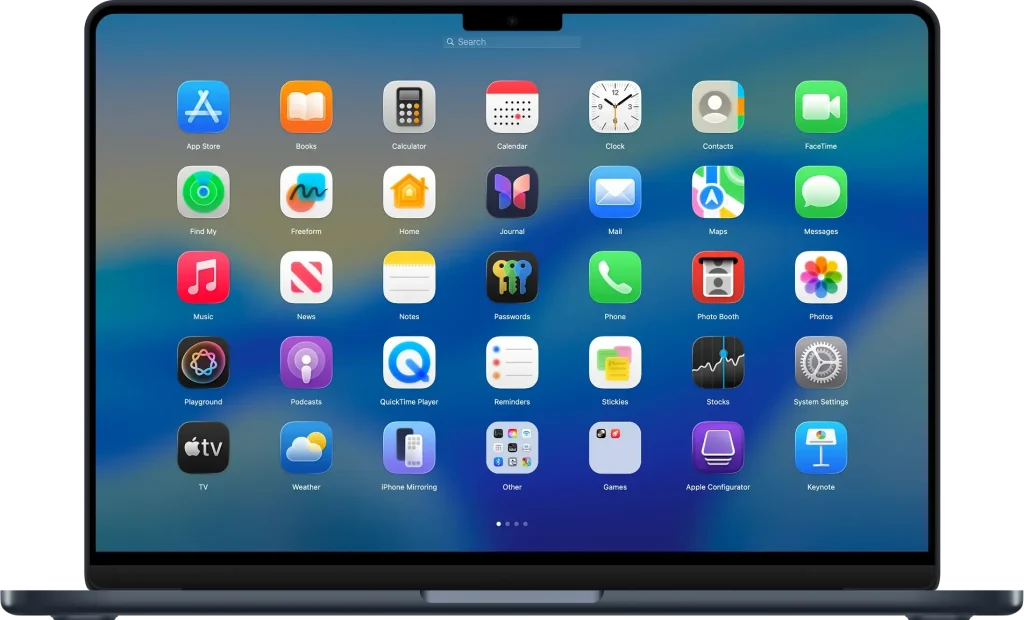
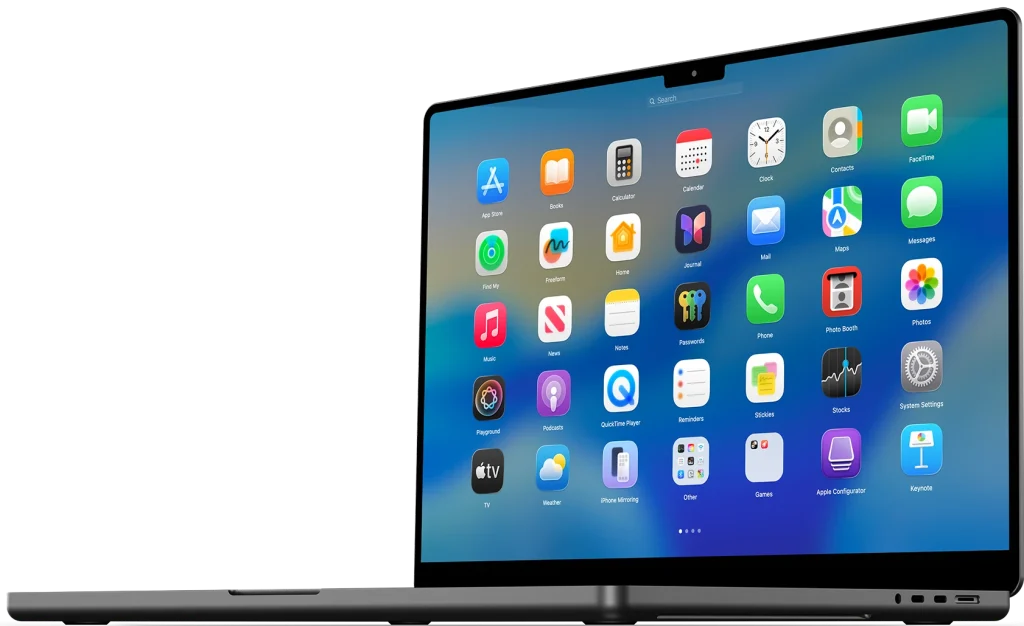
BuhoLaunchpad from Dr.Buho brings back the classic full-screen Launchpad on macOS 26 Tahoe—a clean app grid, smart search, drag-and-drop folders, and gestures Apple removed from the system launcher.
Version 1.8.1 (May 21, 2026) refines folder animations and fixes mouse-drag page switching for a smoother experience.
What BuhoLaunchpad does
Launch & navigation
- Full-screen app grid with multi-page support and instant search
- Four- or five-finger trackpad pinch; Hot Corners shortcuts
- Keyboard arrows, mouse scroll, and vertical trackpad swipe between pages
Organization
- Custom rows and columns; drag-and-drop reordering and folder creation
- Layout profiles (Work, Creative, Weekend) with one-click reset
- Hide apps without deleting; import old Launchpad layouts from previous macOS
- Backup, restore, and sync layouts across Macs
Appearance
- Native macOS 26 icon styles: Default, Dark, Light, Tinted
- Custom backgrounds (wallpaper, image, solid color) and adjustable blur
- Dynamic font color for readability on any background
- Multi-display placement: Dock screen, cursor screen, or main screen
What’s new in v1.8.1
- IMPROVED: Smoother folder expansion and collapse animations
- FIXED: Page switching when dragging app icons with the mouse
Recent in v1.8.0
- Enhanced multi-display strategy; background and blur customization
- Dynamic font color modes; vertical trackpad swipe for page navigation
Requirements & licensing
System
- Version: 1.8.1
- macOS: 15.0 or later; best on macOS 26 Tahoe+
- Architecture: Apple Silicon (M1–M5) and Intel
- Apple Notarized
License
- Free download with trial; one-time purchase via official store
- 30-day money-back guarantee
Official: BuhoLaunchpad · Release notes
Homepage: https://www.drbuho.com/buholaunchpad
Screenshots
Installation & Troubleshooting FAQ 7 questions
Common issues when installing macOS apps
How do I disable SIP and grant Terminal Full Disk Access?
System Integrity Protection (SIP) shields core macOS files from modification. Some patched apps and installers need SIP disabled temporarily.
Boot into Recovery Mode (hold Cmd+R), open Terminal from Utilities, run csrutil disable and restart.
macOS also blocks Terminal from protected folders until Full Disk Access is granted. Go to System Settings → Privacy & Security → Full Disk Access and toggle Terminal on.
How to disable Gatekeeper and remove quarantine?
Gatekeeper and quarantine can stop modified apps with “damaged” or “unidentified developer” warnings.
To disable Gatekeeper: sudo spctl --master-disable
To remove quarantine from a specific app: xattr -rd com.apple.quarantine /Applications/AppName.app
What to use instead of Launchpad on macOS 26?
Launchpad changed in macOS 26, so opening and organizing apps works differently.
Use Spotlight (Cmd+Space) to search and launch any app instantly. Third-party launchers like Alfred or Raycast are also excellent alternatives. You can also pin frequently used apps directly to your Dock for one-click access.
Why do I see security warnings when opening an app?
“App Not Downloaded from Mac App Store” — macOS blocks the app when security settings only allow App Store downloads. Go to Privacy & Security and permit apps from identified developers.
“Unidentified developer” — apps not registered with Apple trigger this on first launch. Use Control-click → Open to add a one-time security exception.
“Cannot verify for malicious software” — use Open Anyway in Privacy & Security to approve the app once.
What if the app is damaged or disk image is corrupted?
“App is damaged and can’t be opened” — quarantine flags or post-download changes trigger this error. Fix it with: xattr -cr /Applications/AppName.app
“Disk image corrupted” — incomplete or interrupted downloads often cause corrupted DMG errors. Use a download manager with resumable downloads to get a clean installer file.
How to fix Adobe app installation errors?
Adobe Creative Cloud local installers may fail from the GUI — right-click Install, open Contents/MacOS, and run the Unix executable manually to start the setup.
Adobe Error 1 (Rosetta required) appears on Apple Silicon when Rosetta is missing. Install it with: /usr/sbin/softwareupdate --install-rosetta --agree-to-license
CCXProcess install errors mean Creative Cloud cannot run Intel code on Apple Silicon without Rosetta — install Rosetta the same way, then retry.
Why can’t I install this app on an Intel Mac?
Some releases support only Apple Silicon (M1, M2, M3 and newer) and cannot install on Intel Macs due to architecture mismatch.
Look for universal builds or older releases matched to your processor. Tools like Adobe Activation Tool, QiuChenly, or RiD may offer Intel-compatible versions.
