Name: Path Finder 26.1.3 [TNT]
Size: 27.28MB
Files: Path Finder 26.1.3 [TNT].dmg[27.28MB]
Version: 26.1.3 | Release: May 2026 | OS: macOS 13.0+
Path Finder 26.1.3 for Mac
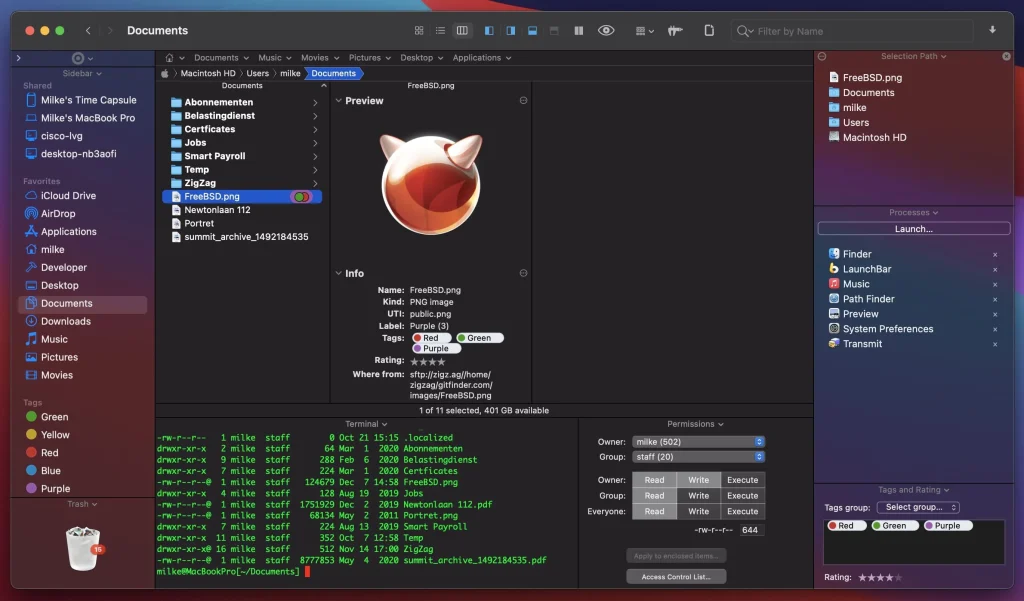
Path Finder is one of the best file managers, with a well-thought-out interface: tabs, document or audio/video file preview, process management, archive management, application installation/removal, the ability to change system hotkeys, convert CD/DVD/BlueRay disc images, dual-panel functionality, and much, much more.
PathFinder is a replacement for the standard Finder, offering its users features such as full keyboard navigation, a built-in FTP client, tabbed browsing, customizable folder views, convenient search, and flexible file selection.
Path Finder’s interface looks very familiar: the same folders as Finder, but with the addition of Safari-style tabs and more buttons. Navigation is the same as Finder’s, but you can also use additional navigation elements, such as tabs and links. Path Finder has incorporated the best elements of the browser, so if you’re used to Finder and Safari, you’ll feel right at home with Path Finder.
Tabs are arguably the best graphical element in apps, and our file manager is no exception. Path Finder’s tabs are incredibly easy to use. Not only do you always see which folders you have open and easily switch between them, but you can also easily drag and drop files between tabs.
Another great feature is tab sets, which are essentially separate, customizable workspaces. This is very convenient, for example, if you’re working on a project and need quick access to all relevant folders, applications, and downloads. Tab sets also store the folders you last opened.
Drop Stack
It’s a temporary storage location where files can reside while being moved. This simplifies the process of moving files to new directories, for example, when cleaning out your downloads folder.
The “two-pane explorer” view in Path Finder splits the window in half, allowing you to view two folders simultaneously. This is very useful for comparing folder contents or moving files between folders. Each pane acts as a separate file browser. You can access this view by clicking the icon in the lower left.
Path Finder dual-pane view
View switches and sections allow you to display additional information in the browser. Selecting the view switcher icon splits the screen at the bottom, revealing customizable information about the selected files. Sections perform the same function, but file information appears on the left, right, or bottom of the browser.
Path Finder modules
Path Finder allows you to filter files by keywords, extension, or type (search box in the top right). If you want to select files based on specific parameters, click the search icon in the toolbar in the top right, enter your search term, and click “+” to add search parameters.
Utilities
Path Finder has additional tools for certain tasks, so you don’t have to launch additional programs. Path Finder’s utilities include a text editor, a simple image editor, an application launcher, and a file archiver.
Homepage https://cocoatech.com/
Video Preview & Screenshots
Installation & Troubleshooting FAQ 7 questions
Common issues when installing macOS apps
How do I disable SIP and grant Terminal Full Disk Access?
System Integrity Protection (SIP) shields core macOS files from modification. Some patched apps and installers need SIP disabled temporarily.
Boot into Recovery Mode (hold Cmd+R), open Terminal from Utilities, run csrutil disable and restart.
macOS also blocks Terminal from protected folders until Full Disk Access is granted. Go to System Settings → Privacy & Security → Full Disk Access and toggle Terminal on.
How to disable Gatekeeper and remove quarantine?
Gatekeeper and quarantine can stop modified apps with “damaged” or “unidentified developer” warnings.
To disable Gatekeeper: sudo spctl --master-disable
To remove quarantine from a specific app: xattr -rd com.apple.quarantine /Applications/AppName.app
What to use instead of Launchpad on macOS 26?
Launchpad changed in macOS 26, so opening and organizing apps works differently.
Use Spotlight (Cmd+Space) to search and launch any app instantly. Third-party launchers like Alfred or Raycast are also excellent alternatives. You can also pin frequently used apps directly to your Dock for one-click access.
Why do I see security warnings when opening an app?
“App Not Downloaded from Mac App Store” — macOS blocks the app when security settings only allow App Store downloads. Go to Privacy & Security and permit apps from identified developers.
“Unidentified developer” — apps not registered with Apple trigger this on first launch. Use Control-click → Open to add a one-time security exception.
“Cannot verify for malicious software” — use Open Anyway in Privacy & Security to approve the app once.
What if the app is damaged or disk image is corrupted?
“App is damaged and can’t be opened” — quarantine flags or post-download changes trigger this error. Fix it with: xattr -cr /Applications/AppName.app
“Disk image corrupted” — incomplete or interrupted downloads often cause corrupted DMG errors. Use a download manager with resumable downloads to get a clean installer file.
How to fix Adobe app installation errors?
Adobe Creative Cloud local installers may fail from the GUI — right-click Install, open Contents/MacOS, and run the Unix executable manually to start the setup.
Adobe Error 1 (Rosetta required) appears on Apple Silicon when Rosetta is missing. Install it with: /usr/sbin/softwareupdate --install-rosetta --agree-to-license
CCXProcess install errors mean Creative Cloud cannot run Intel code on Apple Silicon without Rosetta — install Rosetta the same way, then retry.
Why can’t I install this app on an Intel Mac?
Some releases support only Apple Silicon (M1, M2, M3 and newer) and cannot install on Intel Macs due to architecture mismatch.
Look for universal builds or older releases matched to your processor. Tools like Adobe Activation Tool, QiuChenly, or RiD may offer Intel-compatible versions.
