
Name: Beyond Compare 5.2.2.32209
Size: 53.5MB
Files: Beyond Compare 5.2.2.32209.dmg[53.5MB]
Version: 5.2.2.32209 | Release: June 2026 | OS: macOS 12.0+
Beyond Compare 5.2.2.32209 for Mac
Beyond Compare is a utility that provides users with extensive file comparison and management capabilities.Beginners may find its interface somewhat complex, but if you have any questions, you can always consult the help section.
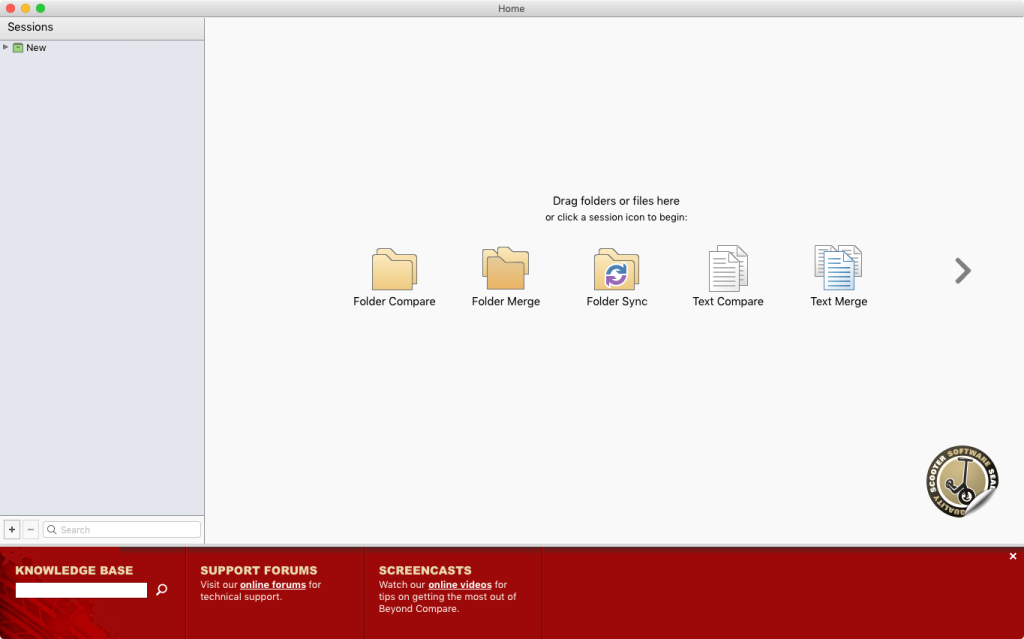
The program interface consists of two tabs. The first contains a list of sessions that can be used. Saved sessions are also visible in the first tab. Clicking a session button takes you to the second tab. At first glance, Beyond Compare’s second tab can be difficult to understand, especially when adding files. However, with a little practice, you’ll quickly figure it out.
Users can view two folders simultaneously, with their contents displayed in two panes. The buttons on the toolbar at the top of the window allow you to manage files and folders, including deleting and moving files, finding differences, and creating rules for processing and comparing folders. Once you’ve completed the comparison process, you can return to the first Beyond Compare tab and review your session by selecting it in the session tree.
Capabilities
- Comparison of entire folders and drives
- Comparison of text and binary files
- Synchronize FTP-sites in just one click
- Merging changes in text files
- Syntax highlighting for various languages
- Integration of the original controls
- Convenient tabbed interface
- Improved support for FTP protocol
- Integrated support for secure FTP protocols
- Adjusting the settings folder comparison
- Multiple modes of comparison (comparison of folders, text, HEX, mp3, pictures, etc.)
- Comparison of text files
- Comparison of folders, zip archives, ftp sites
- Updating websites
- Merge code changes
- Combining text of 3 sources
- Comparison of independent changes to the main source for the creation of a new collaborative content
- Integration of the original controls
- Add commands to check the files in the SCC-compliant version control systems
- Built-in SFTP
- Integrated support for secure FTP protocols (SFTP and FTP over SSL)
- Replace Text
- Adjusting the settings folder comparison. For example, you can compare the .gif files in the same folder as the .png file to another folder with the same name
- And much more
Video Preview & Screenshots
Installation & Troubleshooting FAQ 7 questions
Common issues when installing macOS apps
How do I disable SIP and grant Terminal Full Disk Access?
System Integrity Protection (SIP) shields core macOS files from modification. Some patched apps and installers need SIP disabled temporarily.
Boot into Recovery Mode (hold Cmd+R), open Terminal from Utilities, run csrutil disable and restart.
macOS also blocks Terminal from protected folders until Full Disk Access is granted. Go to System Settings → Privacy & Security → Full Disk Access and toggle Terminal on.
How to disable Gatekeeper and remove quarantine?
Gatekeeper and quarantine can stop modified apps with “damaged” or “unidentified developer” warnings.
To disable Gatekeeper: sudo spctl --master-disable
To remove quarantine from a specific app: xattr -rd com.apple.quarantine /Applications/AppName.app
What to use instead of Launchpad on macOS 26?
Launchpad changed in macOS 26, so opening and organizing apps works differently.
Use Spotlight (Cmd+Space) to search and launch any app instantly. Third-party launchers like Alfred or Raycast are also excellent alternatives. You can also pin frequently used apps directly to your Dock for one-click access.
Why do I see security warnings when opening an app?
“App Not Downloaded from Mac App Store” — macOS blocks the app when security settings only allow App Store downloads. Go to Privacy & Security and permit apps from identified developers.
“Unidentified developer” — apps not registered with Apple trigger this on first launch. Use Control-click → Open to add a one-time security exception.
“Cannot verify for malicious software” — use Open Anyway in Privacy & Security to approve the app once.
What if the app is damaged or disk image is corrupted?
“App is damaged and can’t be opened” — quarantine flags or post-download changes trigger this error. Fix it with: xattr -cr /Applications/AppName.app
“Disk image corrupted” — incomplete or interrupted downloads often cause corrupted DMG errors. Use a download manager with resumable downloads to get a clean installer file.
How to fix Adobe app installation errors?
Adobe Creative Cloud local installers may fail from the GUI — right-click Install, open Contents/MacOS, and run the Unix executable manually to start the setup.
Adobe Error 1 (Rosetta required) appears on Apple Silicon when Rosetta is missing. Install it with: /usr/sbin/softwareupdate --install-rosetta --agree-to-license
CCXProcess install errors mean Creative Cloud cannot run Intel code on Apple Silicon without Rosetta — install Rosetta the same way, then retry.
Why can’t I install this app on an Intel Mac?
Some releases support only Apple Silicon (M1, M2, M3 and newer) and cannot install on Intel Macs due to architecture mismatch.
Look for universal builds or older releases matched to your processor. Tools like Adobe Activation Tool, QiuChenly, or RiD may offer Intel-compatible versions.
