Version: 1.104.18 | Release: May 2026 | OS: macOS 13.0+
Raycast Pro 1.104.18 for Mac
Raycast
Raycast is an exceptionally fast, deeply extensible launcher for the Mac. From one keyboard shortcut you can run tasks, crunch numbers, manage links, and extend the workflow with extensions—without digging through menus or browser tabs.
What it is
Raycast is built to trim friction out of daily work on macOS. It sits on top of the system like a personal assistant: one hotkey away, it helps you move faster through apps and files, and—where you enable it—tap into AI for quick answers and small automations.
Why it matters
Simple jobs often take too many clicks: new tab, find the right tool, repeat. Raycast compresses that into a few keystrokes. Its command-palette style UI groups capabilities as commands, so you spend less time navigating noise and more time doing the work.
Interface and core workflow
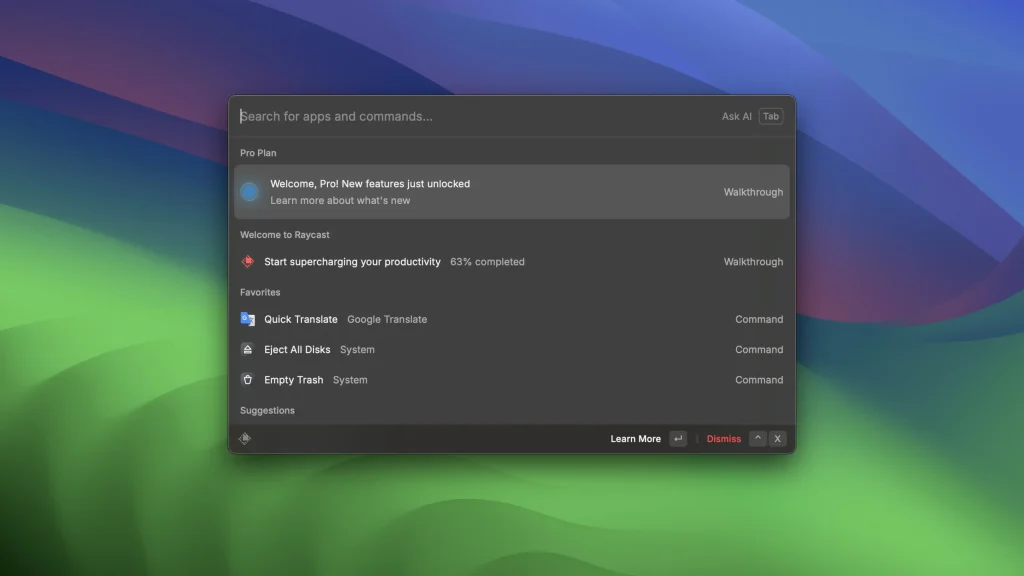
The experience is intentionally minimal. Press ⌥ + Space (or your chosen shortcut) and a compact floating window appears with everything you can run in Raycast.
Built-in commands and shortcuts cover common Mac actions and day-to-day tasks. Need a custom action—define a word, run a utility, or trigger a workflow? Open the Extensions area, add or install a command, and you are set. The same pattern scales to almost any automation you want to drive from the palette.
If the defaults are not enough, you can add script-based commands and choose from a large library of community-built extensions (hundreds of ready-made examples) to go further.
Third-party integrations
Raycast connects to other apps so custom commands can operate inside those services.
- Google: Link a Google account to create new Docs from Raycast, search Drive, and handle other Google workflows from commands instead of the browser alone.
- Zoom: Useful if you live in meetings—after signing in, you can schedule sessions, start calls, and skim upcoming meetings via dedicated commands.
More worth knowing
- Quick Links: Map commands to open specific URLs and choose which browser or client should handle them.
- Files and Calendar: Search local files and inspect calendar entries without leaving the launcher.
- Floating notes: Jot something down in a small floating window, then send it to Apple Notes, iMessage, or the clipboard when you are done.
That is only a slice of what Raycast can do. If you want a single place to build fast, reliable shortcuts on the Mac, it is worth installing and exploring the extension directory when you are ready to go deeper.
Homepage https://www.raycast.com/
Screenshots
Installation & Troubleshooting FAQ 7 questions
Common issues when installing macOS apps
How do I disable SIP and grant Terminal Full Disk Access?
System Integrity Protection (SIP) shields core macOS files from modification. Some patched apps and installers need SIP disabled temporarily.
Boot into Recovery Mode (hold Cmd+R), open Terminal from Utilities, run csrutil disable and restart.
macOS also blocks Terminal from protected folders until Full Disk Access is granted. Go to System Settings → Privacy & Security → Full Disk Access and toggle Terminal on.
How to disable Gatekeeper and remove quarantine?
Gatekeeper and quarantine can stop modified apps with “damaged” or “unidentified developer” warnings.
To disable Gatekeeper: sudo spctl --master-disable
To remove quarantine from a specific app: xattr -rd com.apple.quarantine /Applications/AppName.app
What to use instead of Launchpad on macOS 26?
Launchpad changed in macOS 26, so opening and organizing apps works differently.
Use Spotlight (Cmd+Space) to search and launch any app instantly. Third-party launchers like Alfred or Raycast are also excellent alternatives. You can also pin frequently used apps directly to your Dock for one-click access.
Why do I see security warnings when opening an app?
“App Not Downloaded from Mac App Store” — macOS blocks the app when security settings only allow App Store downloads. Go to Privacy & Security and permit apps from identified developers.
“Unidentified developer” — apps not registered with Apple trigger this on first launch. Use Control-click → Open to add a one-time security exception.
“Cannot verify for malicious software” — use Open Anyway in Privacy & Security to approve the app once.
What if the app is damaged or disk image is corrupted?
“App is damaged and can’t be opened” — quarantine flags or post-download changes trigger this error. Fix it with: xattr -cr /Applications/AppName.app
“Disk image corrupted” — incomplete or interrupted downloads often cause corrupted DMG errors. Use a download manager with resumable downloads to get a clean installer file.
How to fix Adobe app installation errors?
Adobe Creative Cloud local installers may fail from the GUI — right-click Install, open Contents/MacOS, and run the Unix executable manually to start the setup.
Adobe Error 1 (Rosetta required) appears on Apple Silicon when Rosetta is missing. Install it with: /usr/sbin/softwareupdate --install-rosetta --agree-to-license
CCXProcess install errors mean Creative Cloud cannot run Intel code on Apple Silicon without Rosetta — install Rosetta the same way, then retry.
Why can’t I install this app on an Intel Mac?
Some releases support only Apple Silicon (M1, M2, M3 and newer) and cannot install on Intel Macs due to architecture mismatch.
Look for universal builds or older releases matched to your processor. Tools like Adobe Activation Tool, QiuChenly, or RiD may offer Intel-compatible versions.
