Version: 6.3.7 | Release: May 2026 | OS: macOS 12.0+
Posterino 6.3.7 for Mac
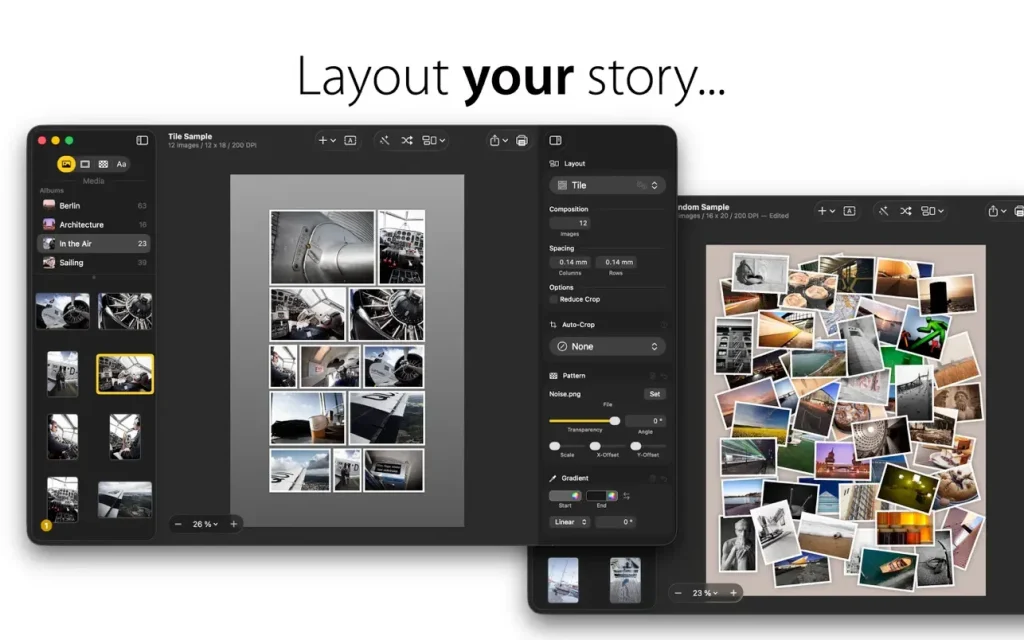
Rather than let those photos on your hard drive collect digital dust, use Posterino to create a beautiful collage. Just choose a template and add your favorite photos. Posterino will randomly shuffle your images into a poster-worthy keepsake. Changes to the layout, frames and filters are accomplished with a single click. Your memories will be ready for display in minutes, and you can let the viewing begin.
You can choose from several lovely calendar templates offering both portrait and landscape views to design your own calendars featuring your favorite photos.
You can also create small calendar overlays for incorporating onto regular posters. The design possibilities are numerous, making these calendars great gifts for family and friends.
Tell them “Wish you were here” with custom postcards.
Share your latest adventure. Or announce your beautiful baby. Whatever your news, Posterino offers a variety of templates for creating custom e-cards and sending them off around the digital world. You can even create your very own stamp and postmark. You don’t need a postman when you have Posterino.
Posterino lets you:
- Enjoy various gorgeous templates
- Create posters, calendars, postcards, photo frames or contact sheets
- Easily customize the layout of your images: grid, irregular, random
- Easily change the number of images in any document
- Easily change the size of any document or predefined template
- Easily customizable calendar objects
- Create your own paper sizes
- Crop any image to your liking
- Alter the frame or shadow of any image; choose from various predefined versions
- Tailor each individual image using an image filter (black & white, sepia, sharpening etc.) to your needs
- Add text boxes to your document
- Rotate or position any image or text box anyway you like
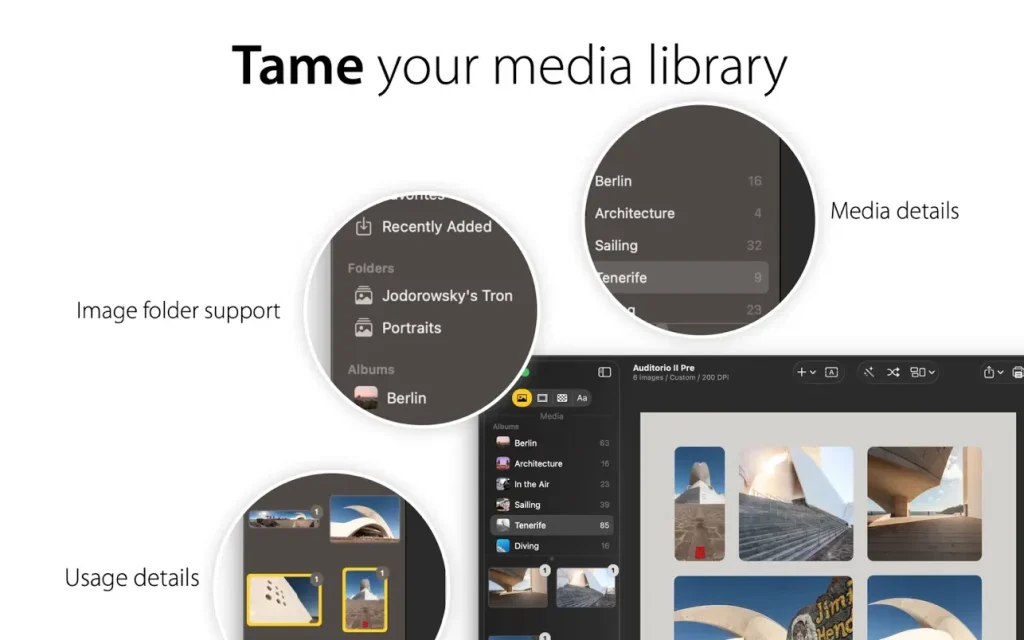
- Add metadata like name, date, comment to any image
- Change any of the given templates to fit your needs
- Customize the postmark used for stamping your e-cards
- Create your own templates
- Edit your document in full-screen mode
- Gain fine-grained control of your document using an inspector
Import / Export / Share
Import your images from:
- iPhoto
- Aperture
- Adobe Lightroom
- or from your hard drive
- Posterino lets you export your poster in various formats like TIFF or JPG.
- Send your postcard through e-mail
- Share you images on Flickr from within Posterino. Have a look at the images already uploaded.
- Easily set your document as your desktop background directly from Posterino
Homepage http://www.zykloid.com/
Screenshots
Installation & Troubleshooting FAQ 7 questions
Common issues when installing macOS apps
How do I disable SIP and grant Terminal Full Disk Access?
System Integrity Protection (SIP) shields core macOS files from modification. Some patched apps and installers need SIP disabled temporarily.
Boot into Recovery Mode (hold Cmd+R), open Terminal from Utilities, run csrutil disable and restart.
macOS also blocks Terminal from protected folders until Full Disk Access is granted. Go to System Settings → Privacy & Security → Full Disk Access and toggle Terminal on.
How to disable Gatekeeper and remove quarantine?
Gatekeeper and quarantine can stop modified apps with “damaged” or “unidentified developer” warnings.
To disable Gatekeeper: sudo spctl --master-disable
To remove quarantine from a specific app: xattr -rd com.apple.quarantine /Applications/AppName.app
What to use instead of Launchpad on macOS 26?
Launchpad changed in macOS 26, so opening and organizing apps works differently.
Use Spotlight (Cmd+Space) to search and launch any app instantly. Third-party launchers like Alfred or Raycast are also excellent alternatives. You can also pin frequently used apps directly to your Dock for one-click access.
Why do I see security warnings when opening an app?
“App Not Downloaded from Mac App Store” — macOS blocks the app when security settings only allow App Store downloads. Go to Privacy & Security and permit apps from identified developers.
“Unidentified developer” — apps not registered with Apple trigger this on first launch. Use Control-click → Open to add a one-time security exception.
“Cannot verify for malicious software” — use Open Anyway in Privacy & Security to approve the app once.
What if the app is damaged or disk image is corrupted?
“App is damaged and can’t be opened” — quarantine flags or post-download changes trigger this error. Fix it with: xattr -cr /Applications/AppName.app
“Disk image corrupted” — incomplete or interrupted downloads often cause corrupted DMG errors. Use a download manager with resumable downloads to get a clean installer file.
How to fix Adobe app installation errors?
Adobe Creative Cloud local installers may fail from the GUI — right-click Install, open Contents/MacOS, and run the Unix executable manually to start the setup.
Adobe Error 1 (Rosetta required) appears on Apple Silicon when Rosetta is missing. Install it with: /usr/sbin/softwareupdate --install-rosetta --agree-to-license
CCXProcess install errors mean Creative Cloud cannot run Intel code on Apple Silicon without Rosetta — install Rosetta the same way, then retry.
Why can’t I install this app on an Intel Mac?
Some releases support only Apple Silicon (M1, M2, M3 and newer) and cannot install on Intel Macs due to architecture mismatch.
Look for universal builds or older releases matched to your processor. Tools like Adobe Activation Tool, QiuChenly, or RiD may offer Intel-compatible versions.
