Name: MP3 Encoder 2.20.0 [TNT]
Size: 18.92MB
Files: MP3 Encoder 2.20.0 [TNT].dmg[18.92MB]
Version: 2.20.0 | Release: May 2026 | OS: macOS 11.0+
MP3 Encoder 2.20.0 for Mac
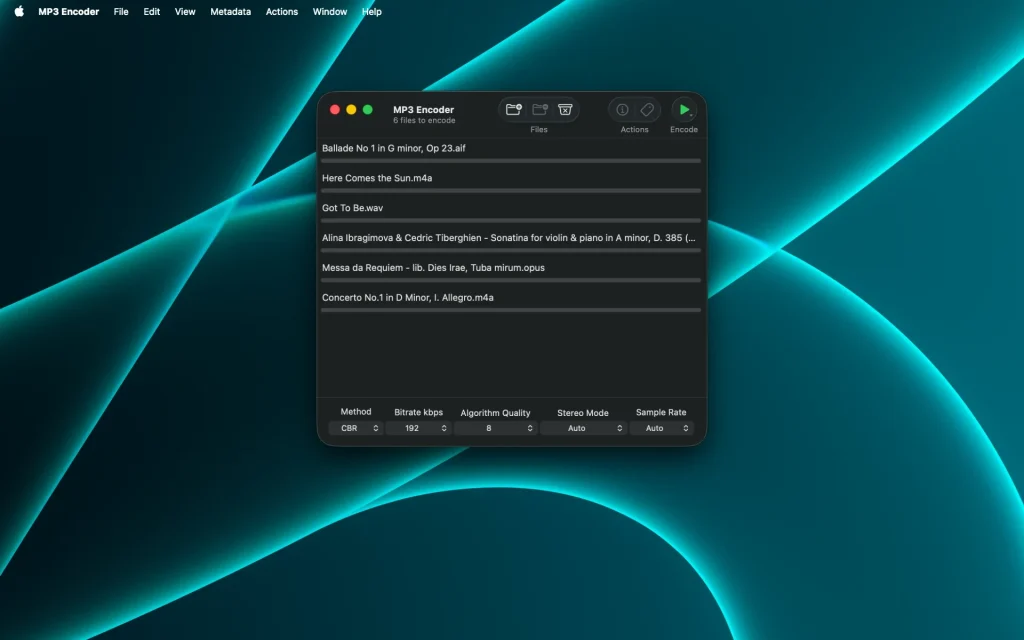
MP3 Encoder is an application designed for batch converting audio files to MP3 format using the LAME encoder. It supports AAC, AIFF, Apple Lossless, FLAC, Opus, WAV, WMA, and other formats, includes a built-in metadata editor, and provides a full set of LAME parameters (bitrate, algorithm quality, stereo mode).
Peculiarities:
- • Fast batch conversion
MP3 Encoder supports multi-threading and can convert multiple files at the same time, within the number of CPU cores of your system. - • Compatibility
Supports a wide range of input formats, including AAC, AIFF, Apple Lossless, FLAC, Opus, WAV, WMA and many more! - • Metadata
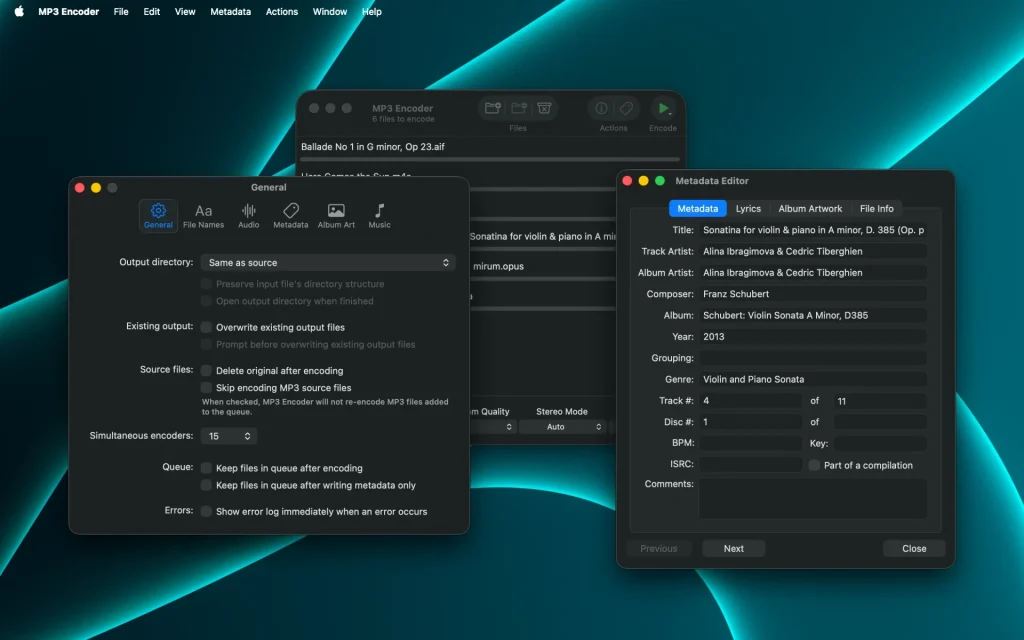
Supports reading and writing metadata, including album art. Edit and enter your own metadata with the easy-to-use editor. You can even create custom output paths and file names based on metadata. - • Encoding Options
The MP3 encoder provides you with a full range of encoding options. Choose from all encoding methods, bit rates, algorithm qualities and stereo modes offered by the LAME codec. - • Music app integration
Export encoded MP3 files directly to your Apple Music library. You can even create custom playlists based on track metadata! - • MP3 Encoder Tag Editor
can also edit the metadata of existing MP3 files, functioning as a basic tag editor, without having to re-encode the files!
What’s new in v2.20.0
New:
- Raw PCM & SD2 import — open .raw/.pcm or stripped Sound Designer II files; set sample rate, bit depth, and channels in one sheet
- Content-based detection — recognizes audio by file contents, not extension; “All Files” toggle for extensionless files
- Tag passthrough — source metadata maps across formats into the encoded MP3
- Multi-value tags — Composer, Artist, Album Artist, etc.; configurable Multi-Value Separator (Settings → Metadata)
- Sample-rate & dither — Mastering / Normal / Fast resampling; None, TPDF, or Noise Shaping dither (Settings → Audio)
Improved:
- Refreshed main window; file count as subtitle; rebuilt per-file progress bars
Fixed:
- Album art no longer lost on FLAC files with multiple PICTURE blocks
- Better decoding of multi-channel files without a defined channel layout
Key features
- Batch encode to MP3 with full LAME options (bitrate, quality, stereo mode)
- Inputs: AAC, AIFF, FLAC, Apple Lossless, Opus, WAV, WMA, DSD, modules, Ogg formats, video (.mov/.mp4 audio), and more
- Tag editor for existing MP3s without re-encoding; custom output paths from metadata
- Optional auto-add to Music app; native Apple Silicon
Requirements & licensing
- Version: 2.20.0
- Platform: macOS (native Apple Silicon and Intel)
- macOS: 11.0 Big Sur or later
- Size: ~11 MB
- License: paid Mac App Store purchase (~$5.99 USD); Family Sharing; no data collected
Homepage https://www.markvapps.com/mp3encoder
Screenshots
Installation & Troubleshooting FAQ 7 questions
Common issues when installing macOS apps
How do I disable SIP and grant Terminal Full Disk Access?
System Integrity Protection (SIP) shields core macOS files from modification. Some patched apps and installers need SIP disabled temporarily.
Boot into Recovery Mode (hold Cmd+R), open Terminal from Utilities, run csrutil disable and restart.
macOS also blocks Terminal from protected folders until Full Disk Access is granted. Go to System Settings → Privacy & Security → Full Disk Access and toggle Terminal on.
How to disable Gatekeeper and remove quarantine?
Gatekeeper and quarantine can stop modified apps with “damaged” or “unidentified developer” warnings.
To disable Gatekeeper: sudo spctl --master-disable
To remove quarantine from a specific app: xattr -rd com.apple.quarantine /Applications/AppName.app
What to use instead of Launchpad on macOS 26?
Launchpad changed in macOS 26, so opening and organizing apps works differently.
Use Spotlight (Cmd+Space) to search and launch any app instantly. Third-party launchers like Alfred or Raycast are also excellent alternatives. You can also pin frequently used apps directly to your Dock for one-click access.
Why do I see security warnings when opening an app?
“App Not Downloaded from Mac App Store” — macOS blocks the app when security settings only allow App Store downloads. Go to Privacy & Security and permit apps from identified developers.
“Unidentified developer” — apps not registered with Apple trigger this on first launch. Use Control-click → Open to add a one-time security exception.
“Cannot verify for malicious software” — use Open Anyway in Privacy & Security to approve the app once.
What if the app is damaged or disk image is corrupted?
“App is damaged and can’t be opened” — quarantine flags or post-download changes trigger this error. Fix it with: xattr -cr /Applications/AppName.app
“Disk image corrupted” — incomplete or interrupted downloads often cause corrupted DMG errors. Use a download manager with resumable downloads to get a clean installer file.
How to fix Adobe app installation errors?
Adobe Creative Cloud local installers may fail from the GUI — right-click Install, open Contents/MacOS, and run the Unix executable manually to start the setup.
Adobe Error 1 (Rosetta required) appears on Apple Silicon when Rosetta is missing. Install it with: /usr/sbin/softwareupdate --install-rosetta --agree-to-license
CCXProcess install errors mean Creative Cloud cannot run Intel code on Apple Silicon without Rosetta — install Rosetta the same way, then retry.
Why can’t I install this app on an Intel Mac?
Some releases support only Apple Silicon (M1, M2, M3 and newer) and cannot install on Intel Macs due to architecture mismatch.
Look for universal builds or older releases matched to your processor. Tools like Adobe Activation Tool, QiuChenly, or RiD may offer Intel-compatible versions.
