Name: Parallels Desktop 26.3.3 57507 [atb]
Size: 210.55MB
Files: Parallels Desktop 26.3.3 57507 [atb].dmg[210.55MB]
Version: 26.3.3-57507 | Release: June 2026 | OS: macOS 13.0+
Parallels Desktop 26.3.3-57507 for Mac
If you need to run Windows programs that aren’t available on Mac, or need to migrate data when switching from a PC to a Mac, Parallels Desktop can help you solve these problems.
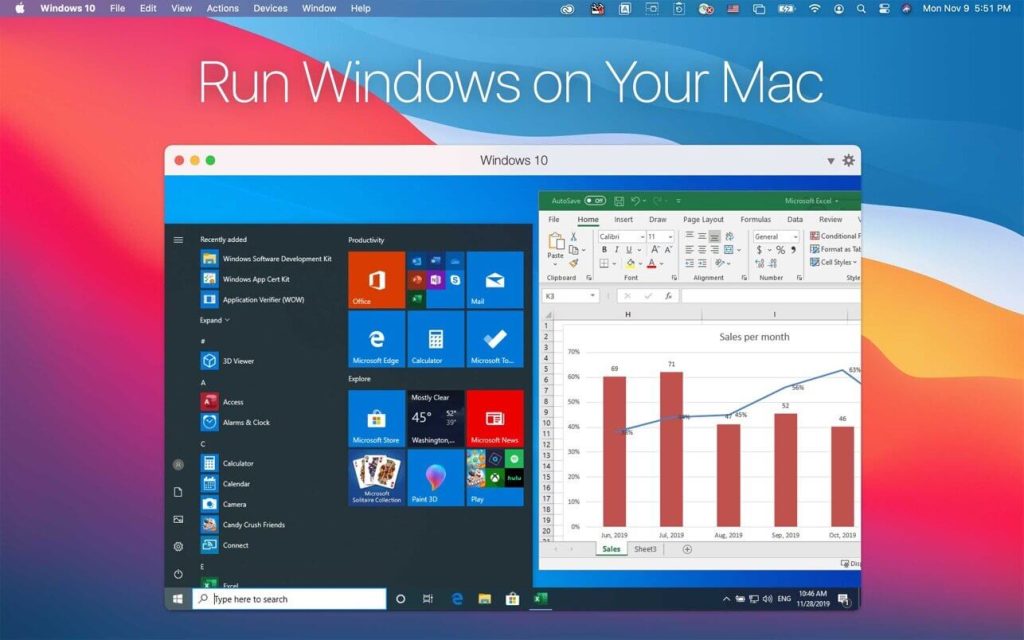
Run Windows side-by-side with macOS (no reboot required) on your MacBook, MacBook Pro, iMac, iMac Pro, Mac mini, or Mac Pro. Share files and folders, copy and paste text and images, and drag and drop files between Mac and Windows apps.
Parallels Desktop automatically detects what’s required to get started, so setup takes just minutes. If Windows installation is required, the user will be prompted to download and install Windows 10 or select a currently installed version of Windows, Linux, Ubuntu, or Boot Camp.
Graphics and other resource-intensive Windows applications run smoothly on your Mac. Work with even the most demanding graphics applications, such as Adobe Photoshop, Visual Studio, or SketchUp, without sacrificing performance.
In Coherence mode, the Windows interface will be hidden when using Windows applications. If you’re not used to working on a Mac, you can make the Windows window take up the entire screen, creating the feeling of working on a regular Windows computer.
Aside from installing Windows via Boot Camp, which isn’t likely to be supported on Apple Silicon, Parallels offers possibly the most seamless experience when running another operating system on your Mac.
MacBook Pro users can add Windows apps to the Touch Bar, Office integration lets documents in Safari open in their native Windows apps, and full support is available for Retina displays for the best visual experience.
Sharing files between your Mac and Windows VM could not be easier, as files on the desktop are instantly accessible from either OS, no matter where they were created.
If you want to take things one step further, just enable Coherence Mode. Once it is active, all applications in your Windows VM will appear in separate windows directly on your Mac’s desktop, almost as if they were running natively on macOS.
Of course, Parallels Desktop is available in multiple editions, with the Pro and Business variants geared towards professionals and enterprises respectively. While the Standard edition includes most features, it limits the amount of RAM and virtual CPUs you can use for each VM and lacks some advanced deployment and management tools.
These include integration with Docker, Vagrant, and Microsoft Visual Studio, among others, VM transferring and deployment capabilities, debugging tools, and centralized administration and management.
Whether you’re just starting out or you have a lot of experience with running VMs, nothing can beat the streamlined experience you get with Parallels, and it doesn’t lose out to its competitors when it comes to the number of available features either.
With Boot Camp seemingly doomed on Apple Silicon, Parallels will likely be one of the few virtualization options available for M1 Mac users.
Homepage https://www.parallels.com/
Video Preview & Screenshots
⚖️ Pros & Cons Show details ▼
✅ PROS
- Flawless Integration: Coherence mode lets you run Windows apps side-by-side with Mac apps seamlessly; the 26.3.3 update fixes UI bugs where Office 365 windows would glitch out.
- Built for macOS Tahoe & M-Chips: Deliver zero-lag virtualization with deep, native optimization for Apple Silicon and full compatibility with the latest macOS Tahoe.
- Smart Storage Allocation: Features an advanced virtual disk system that accurately tracks real-time Mac storage, preventing VMs from throttling or locking up your host drive.
- Critical Bug Patches: Directly resolves Steam launch crashes on Windows 11 and fixes the specific 3D rendering freezes that plagued earlier v26 builds.
- Upgraded Linux Support: Introduces a brand-new, driverless version of Parallels Tools, making it effortless to spin up cutting-edge distros like Ubuntu 24.04 and Kali.
❌ CONS
- Pricey Subscription: It relies heavily on a recurring annual subscription model, making it a costly choice for casual users.
- Resource Heavy on 8GB Macs: Running a full OS VM requires significant overhead; base-model Macs will experience visible multitasking lag.
- ARM Architecture Hurdles: Because it runs Windows on ARM (for M-series Macs), apps with kernel-level anti-cheat, legacy drivers, or deep x64 dependencies won’t work.
- Peripheral & Cursor Drift: Rapidly switching between Mac and VM environments can still trigger intermittent mouse tracking jumps and peripheral disconnects.
- Activation Glitches: Users still report annoying “license expired” false alarms right after upgrading or renewing, requiring a manual cache clear to fix.
✅ What’s New 26.3.3-57507
Show details ▼
-
✔️ macOS Tahoe Compatibility: Fully optimized for Apple’s latest macOS Tahoe architecture to prevent background VM freezes.
-
✔️ Real-Time Storage Sync: Windows now reads exact Mac disk space, stopping massive updates from locking up your host drive.
-
✔️ Driverless Linux Tools: Eliminates kernel errors entirely, allowing flawless folder sharing on Ubuntu and Kali.
-
✔️ Apple Writing Tools Integration: Allows you to use native Mac intelligence to summarize or rewrite text inside Windows apps.
-
✔️ Steam & Clipboard Fixes: The 26.3.3 patch fixes instant Steam crashes and resolves broken cross-OS file copy-pasting.
Installation & Troubleshooting FAQ 7 questions
Common issues when installing macOS apps
How do I disable SIP and grant Terminal Full Disk Access?
System Integrity Protection (SIP) shields core macOS files from modification. Some patched apps and installers need SIP disabled temporarily.
Boot into Recovery Mode (hold Cmd+R), open Terminal from Utilities, run csrutil disable and restart.
macOS also blocks Terminal from protected folders until Full Disk Access is granted. Go to System Settings → Privacy & Security → Full Disk Access and toggle Terminal on.
How to disable Gatekeeper and remove quarantine?
Gatekeeper and quarantine can stop modified apps with “damaged” or “unidentified developer” warnings.
To disable Gatekeeper: sudo spctl --master-disable
To remove quarantine from a specific app: xattr -rd com.apple.quarantine /Applications/AppName.app
What to use instead of Launchpad on macOS 26?
Launchpad changed in macOS 26, so opening and organizing apps works differently.
Use Spotlight (Cmd+Space) to search and launch any app instantly. Third-party launchers like Alfred or Raycast are also excellent alternatives. You can also pin frequently used apps directly to your Dock for one-click access.
Why do I see security warnings when opening an app?
“App Not Downloaded from Mac App Store” — macOS blocks the app when security settings only allow App Store downloads. Go to Privacy & Security and permit apps from identified developers.
“Unidentified developer” — apps not registered with Apple trigger this on first launch. Use Control-click → Open to add a one-time security exception.
“Cannot verify for malicious software” — use Open Anyway in Privacy & Security to approve the app once.
What if the app is damaged or disk image is corrupted?
“App is damaged and can’t be opened” — quarantine flags or post-download changes trigger this error. Fix it with: xattr -cr /Applications/AppName.app
“Disk image corrupted” — incomplete or interrupted downloads often cause corrupted DMG errors. Use a download manager with resumable downloads to get a clean installer file.
How to fix Adobe app installation errors?
Adobe Creative Cloud local installers may fail from the GUI — right-click Install, open Contents/MacOS, and run the Unix executable manually to start the setup.
Adobe Error 1 (Rosetta required) appears on Apple Silicon when Rosetta is missing. Install it with: /usr/sbin/softwareupdate --install-rosetta --agree-to-license
CCXProcess install errors mean Creative Cloud cannot run Intel code on Apple Silicon without Rosetta — install Rosetta the same way, then retry.
Why can’t I install this app on an Intel Mac?
Some releases support only Apple Silicon (M1, M2, M3 and newer) and cannot install on Intel Macs due to architecture mismatch.
Look for universal builds or older releases matched to your processor. Tools like Adobe Activation Tool, QiuChenly, or RiD may offer Intel-compatible versions.
