
Name: 4K Video Downloader+ 26.1 [TNT]
Size: 275.39MB
Files: 4K Video Downloader+ 26.1 [TNT].dmg [275.39MB]
Version: 26.1.2 | Release: May 2026 | OS: macOS 11.0+
4K Video Downloader Plus Pro 26.1.2 for Mac
4K Video Downloader is a simple video downloader, nothing more. Video hosting services have made watching videos convenient and widely available, but they also have obvious drawbacks. A video might be online one minute, but it might be deleted an hour later. Your friend in Europe might watch a recording that’s unavailable in Russia. You might have internet access today, but tomorrow you’re planning a trip to the middle of nowhere without even the slightest hint of 3G. In short, being able to save important videos locally is useful, and to simplify the process, it’s wise to use a specialized utility.
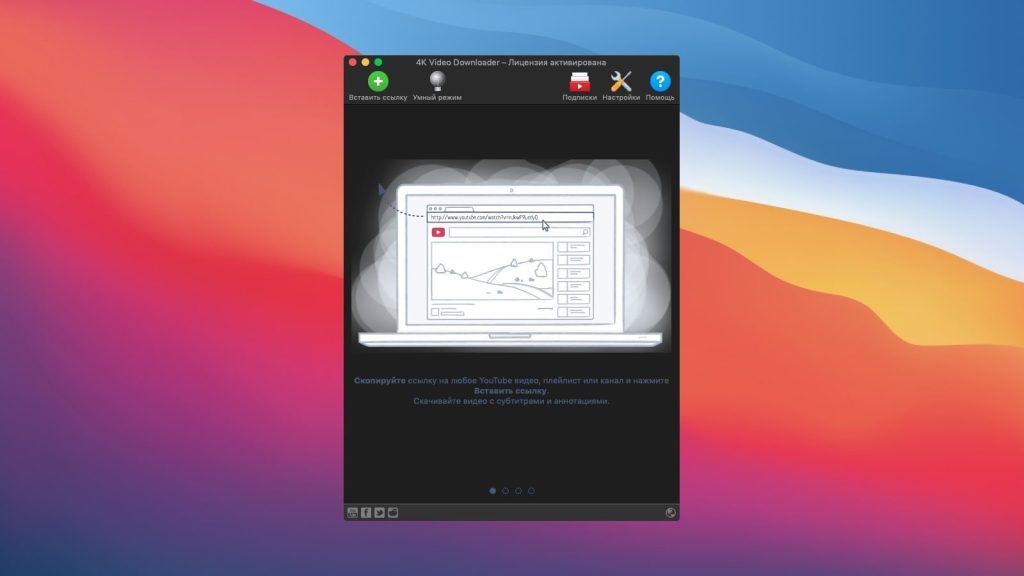
4K Video Downloader lets you download high-quality YouTube videos, audio, and subtitles to your computer. If you want to download videos to your iPad, iPhone, and other devices, this app is for you. Downloading is simple and easy: just copy the link from your browser and click “Paste URL.” Enjoy the video anywhere, anytime, even offline.
* A registered program allows you to download YouTube channels and playlists with subtitles or containing more than 25 clips
Functions:
- • Download entire playlists and channels from YouTube and save them in MP4, MKV, M4A, MP3, FLV, 3G, create .m3u files for playlists.
- • Download videos in HD 1080p, HD 720p or 4K quality and enjoy high definition on your HD TV, iPad and other devices.
- • Advanced options for downloading subtitles, choose what you prefer: have a separate .srt file or embed subtitles in a video file for viewing on your Mac, for example.
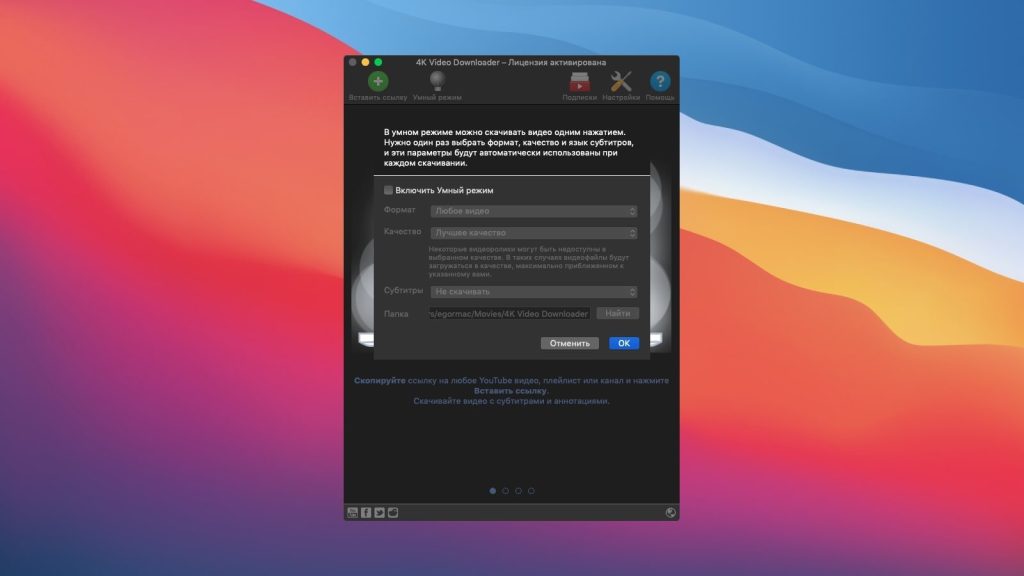
- • Activate “Smart Mode” to apply your selected settings to all downloads, quickly and easily.
- • Download videos in 3D format; you’ll find a small 3D icon among other formats after parsing the link. It’s truly impressive to watch shows and cartoons in 3D.
- • Download embedded YouTube videos from any web page, just copy and paste the page address, the program will automatically find the source for downloading.
- • Download videos and audio from popular sites like Vimeo, SoundCloud, Flickr, Facebook and DailyMotion.
How to download videos from popular video hosting sites on Mac: 4K Video Downloader:
As its name suggests, Video Downloader works with videos of any quality, up to 4K. To get the desired video on your Mac, simply have the video or playlist link in your clipboard, then open 4K Video Downloader and click Paste URL.
The program will immediately “swallow” the link, after which it will prompt you to specify the parameters for the downloaded videos.
- • extract the entire video, or just the sound;
- • the format in which you want to save the video (3D videos are also supported and saved correctly);
- • the quality of the original video that will be downloaded from the video hosting site;
- • whether to include subtitles in the video, and if so, in what language and in what format (as a separate file or embedded).
- After this, all you have to do is specify the save path and click the Download button.
If you’re downloading dozens of videos from different sources and don’t need to individually adjust the quality for each one, consider using a clever “smiley” feature called Smart Mode. It’s essentially a template with parameters for downloaded videos. In this mode, simply paste the link to the video you want to download into the app, and 4K Downloader will handle everything else automatically, including the save path, according to the preset options. Basically, it’s a one-click download.
4K Video Downloader supports YouTube, Vimeo, Facebook, DailyMotion, SoundCloud, Flickr and Instagram.
As mentioned above, accessing a video requires only a link to it. This allows you to download videos, including those unavailable in your region. Even if a YouTube video is embedded on a webpage with enhanced privacy settings (meaning no option to view it on YouTube itself), 4K Video Downloader somehow recognizes the video in the link to the page and successfully retrieves it.
Features
- Extract audio from YouTube videos and save it in MP3, M4A or OGG in high quality.
- Download full YouTube playlists or channels and generate m3u files.
- Transfer downloaded tracks automatically into iTunes and upload them on your iPhone or iPod.
- Listen music via native built-in music player.
- Download and extract audio tracks from SoundCloud, Vimeo, Flickr and DailyMotion videos.
- Download audio books from YouTube.
- Extract audio tracks even from embedded in HTML page videos.
- Use 4K YouTube to MP3 on your PC, Mac or Linux, doesn’t matter what OS you prefer.
Homepage https://www.4kdownload.com/products/videodownloader-39
Screenshots
Installation & Troubleshooting FAQ 7 questions
Common issues when installing macOS apps
How do I disable SIP and grant Terminal Full Disk Access?
System Integrity Protection (SIP) shields core macOS files from modification. Some patched apps and installers need SIP disabled temporarily.
Boot into Recovery Mode (hold Cmd+R), open Terminal from Utilities, run csrutil disable and restart.
macOS also blocks Terminal from protected folders until Full Disk Access is granted. Go to System Settings → Privacy & Security → Full Disk Access and toggle Terminal on.
How to disable Gatekeeper and remove quarantine?
Gatekeeper and quarantine can stop modified apps with “damaged” or “unidentified developer” warnings.
To disable Gatekeeper: sudo spctl --master-disable
To remove quarantine from a specific app: xattr -rd com.apple.quarantine /Applications/AppName.app
What to use instead of Launchpad on macOS 26?
Launchpad changed in macOS 26, so opening and organizing apps works differently.
Use Spotlight (Cmd+Space) to search and launch any app instantly. Third-party launchers like Alfred or Raycast are also excellent alternatives. You can also pin frequently used apps directly to your Dock for one-click access.
Why do I see security warnings when opening an app?
“App Not Downloaded from Mac App Store” — macOS blocks the app when security settings only allow App Store downloads. Go to Privacy & Security and permit apps from identified developers.
“Unidentified developer” — apps not registered with Apple trigger this on first launch. Use Control-click → Open to add a one-time security exception.
“Cannot verify for malicious software” — use Open Anyway in Privacy & Security to approve the app once.
What if the app is damaged or disk image is corrupted?
“App is damaged and can’t be opened” — quarantine flags or post-download changes trigger this error. Fix it with: xattr -cr /Applications/AppName.app
“Disk image corrupted” — incomplete or interrupted downloads often cause corrupted DMG errors. Use a download manager with resumable downloads to get a clean installer file.
How to fix Adobe app installation errors?
Adobe Creative Cloud local installers may fail from the GUI — right-click Install, open Contents/MacOS, and run the Unix executable manually to start the setup.
Adobe Error 1 (Rosetta required) appears on Apple Silicon when Rosetta is missing. Install it with: /usr/sbin/softwareupdate --install-rosetta --agree-to-license
CCXProcess install errors mean Creative Cloud cannot run Intel code on Apple Silicon without Rosetta — install Rosetta the same way, then retry.
Why can’t I install this app on an Intel Mac?
Some releases support only Apple Silicon (M1, M2, M3 and newer) and cannot install on Intel Macs due to architecture mismatch.
Look for universal builds or older releases matched to your processor. Tools like Adobe Activation Tool, QiuChenly, or RiD may offer Intel-compatible versions.
