
Version: 3.0.5 | Release: May 2026 | OS: macOS 14.0+
BatFi 3.0.5 for Mac
BatFi helps optimize your macOS battery performance by intelligently managing charging levels while giving you complete control—charging to 100% only when needed.
BatFi is a lightweight and simple app that simplifies battery management.
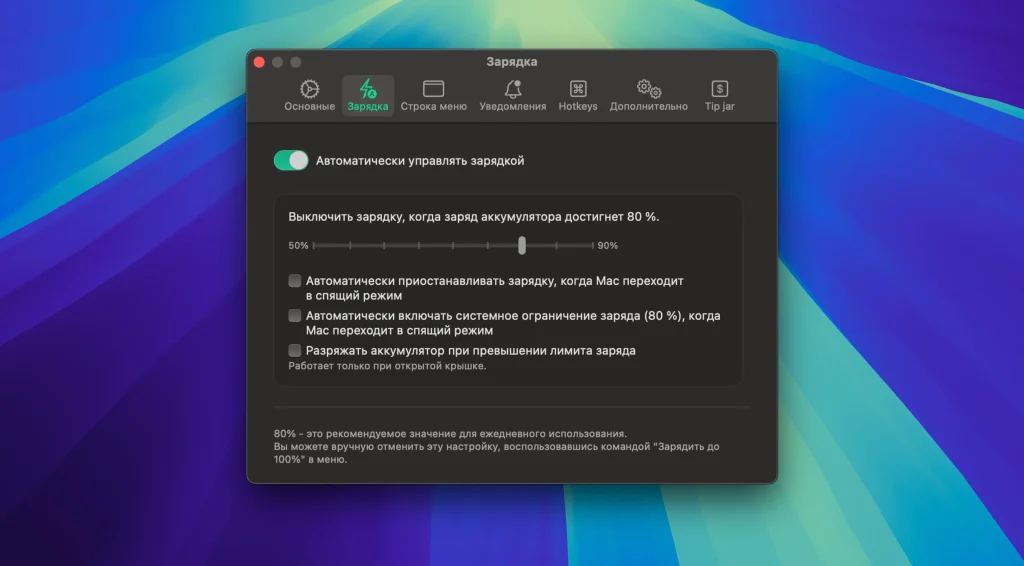
With BatFi, you set a charging limit once and then forget about it. The app prevents overcharging, helping extend your battery’s lifespan. And when you need a full charge, a single menu command lets you manually charge it to 100%.
Maintaining a lithium-ion battery in a high-charge state can significantly reduce its lifespan. While macOS offers a feature that automatically delays charging until the battery reaches 100%, it lacks user control. This automated approach relies on machine learning to adapt to user habits, leaving users unable to determine when and for how long to delay charging. Consequently, this solution may be ineffective for users who use their computer infrequently or for devices that are frequently connected to power sources, such as monitors like Apple’s Studio Display or Pro Display XDR.
BatFi, on the other hand, works differently. The app allows you to set a user-selected battery charge limit and maintain it indefinitely. With BatFi, you have the flexibility to decide when to charge your battery to 100%, depending on your usage needs.
Features: BatFi’s
- automatic charging suppression
starts with your system and actively monitors your battery’s charge percentage. Once the battery’s charge reaches a threshold (either set by you or the default 80%), the app automatically blocks further charging while your computer is connected to an AC adapter. By avoiding full charging, BatFi helps extend battery life over the long term. - Convenient 100% Charging Option
: Need maximum battery life for a specific task? BatFi offers a dedicated menu command, accessible via the status bar icon. With one click, you can charge your battery to 100% for those times when you need extra power. - Information Notifications:
Stay informed about charging status changes with BatFi notifications. Receive alerts about charging status changes and gain instant access to battery information by tapping the status icon. View important information such as battery percentage, estimated time remaining, battery cycle count, battery temperature, power source status, and overall battery health. - Customizable Status Icon:
The BatFi status icon is both functional and visually appealing. Customize the icon to your liking and enjoy a battery symbol with an elegantly displayed percentage and charging status. Witness a super-cool animation when the status changes, adding a touch of excitement to your battery monitoring experience. - Set it and forget it
—BatFi takes care of battery management with ease. Once you’ve configured your preferred settings, the app will run in the background without requiring any further intervention. Just configure it and let BatFi take care of the rest.
What BatFi does
- Charging limit — set a cap (default 80%) and keep the battery below full charge while on AC power
- Charge to 100% on demand — one menu-bar command when you need maximum runtime
- Background monitoring — launches at login and reacts when charge hits your threshold
- Status bar icon — battery percentage, charging state, and optional animations
- Notifications — alerts when charging mode changes; quick access to battery details (cycles, temperature, health, time remaining)
- User control — unlike macOS Optimized Battery Charging, you pick the limit and when to top up
What’s new in v3.0.5
- macOS 26.4+ support (per official changelog)
Requirements & licensing
- Version: 3.0.5
- Platform: macOS — Apple Silicon only
- macOS: Ventura or later; 3.x line requires macOS 15 or newer
- License: paid app from the developer; admin password required to change charging mode (not allowed on Mac App Store for that reason)
- Install: drag BatFi.app to Applications and complete onboarding
Homepage: https://micropixels.software/apps/batfi
Screenshot
Installation & Troubleshooting FAQ 7 questions
Common issues when installing macOS apps
How do I disable SIP and grant Terminal Full Disk Access?
System Integrity Protection (SIP) shields core macOS files from modification. Some patched apps and installers need SIP disabled temporarily.
Boot into Recovery Mode (hold Cmd+R), open Terminal from Utilities, run csrutil disable and restart.
macOS also blocks Terminal from protected folders until Full Disk Access is granted. Go to System Settings → Privacy & Security → Full Disk Access and toggle Terminal on.
How to disable Gatekeeper and remove quarantine?
Gatekeeper and quarantine can stop modified apps with “damaged” or “unidentified developer” warnings.
To disable Gatekeeper: sudo spctl --master-disable
To remove quarantine from a specific app: xattr -rd com.apple.quarantine /Applications/AppName.app
What to use instead of Launchpad on macOS 26?
Launchpad changed in macOS 26, so opening and organizing apps works differently.
Use Spotlight (Cmd+Space) to search and launch any app instantly. Third-party launchers like Alfred or Raycast are also excellent alternatives. You can also pin frequently used apps directly to your Dock for one-click access.
Why do I see security warnings when opening an app?
“App Not Downloaded from Mac App Store” — macOS blocks the app when security settings only allow App Store downloads. Go to Privacy & Security and permit apps from identified developers.
“Unidentified developer” — apps not registered with Apple trigger this on first launch. Use Control-click → Open to add a one-time security exception.
“Cannot verify for malicious software” — use Open Anyway in Privacy & Security to approve the app once.
What if the app is damaged or disk image is corrupted?
“App is damaged and can’t be opened” — quarantine flags or post-download changes trigger this error. Fix it with: xattr -cr /Applications/AppName.app
“Disk image corrupted” — incomplete or interrupted downloads often cause corrupted DMG errors. Use a download manager with resumable downloads to get a clean installer file.
How to fix Adobe app installation errors?
Adobe Creative Cloud local installers may fail from the GUI — right-click Install, open Contents/MacOS, and run the Unix executable manually to start the setup.
Adobe Error 1 (Rosetta required) appears on Apple Silicon when Rosetta is missing. Install it with: /usr/sbin/softwareupdate --install-rosetta --agree-to-license
CCXProcess install errors mean Creative Cloud cannot run Intel code on Apple Silicon without Rosetta — install Rosetta the same way, then retry.
Why can’t I install this app on an Intel Mac?
Some releases support only Apple Silicon (M1, M2, M3 and newer) and cannot install on Intel Macs due to architecture mismatch.
Look for universal builds or older releases matched to your processor. Tools like Adobe Activation Tool, QiuChenly, or RiD may offer Intel-compatible versions.
