
Keep It 2.8.6 for Mac
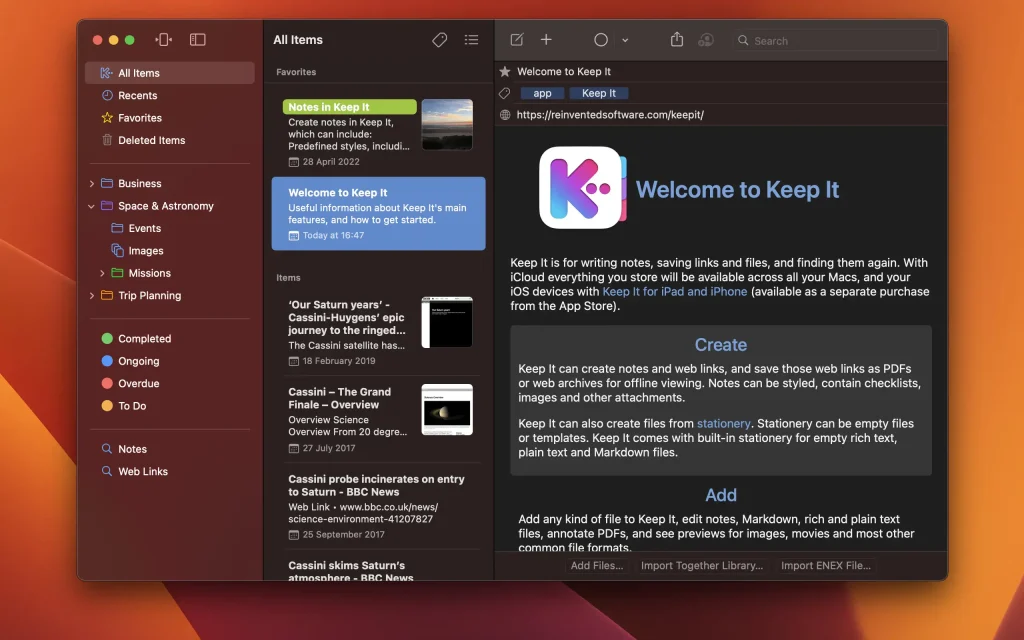
Keep It is a notebook, scrapbook, and organizer perfect for jotting down notes, storing web links, storing documents, images, or any files and finding them later. Available on Mac and as a standalone app for iPhone and iPad, Keep It is designed for all those things you want to put somewhere, confident you’ll find them later.
Take notes
Create notes with built-in styles that look great and are easy to read on all your devices. Notes can contain checklists, bulleted and numbered lists, links, dividers, images, and other attachments.
Add something
Any file can be added to Keep It directly, saved to one of its folders in Finder, or created from stationery and opened for editing in other applications. Any item can be password-protected.
Save web links
Save web links in Keep It, view them in the app, open them in your browser, save them as PDFs or web archives for offline reading, or convert them into editable notes.
Preview and Editing
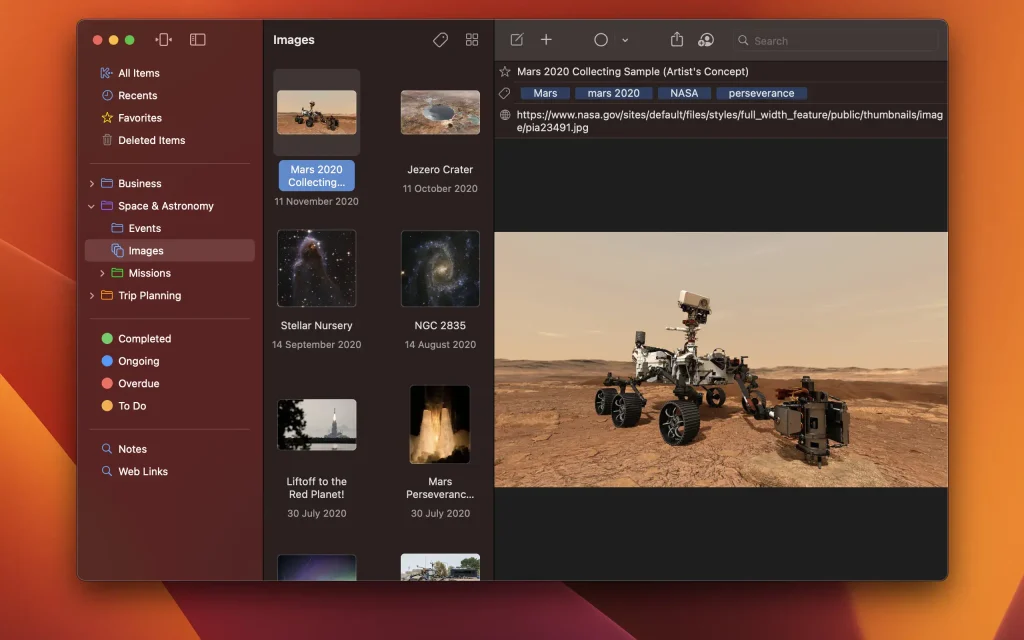
Keep It can edit your own notes, rich text, plain text, and Markdown files, add highlights and notes to PDFs, and display previews of images, web pages, and most other documents.
Everywhere
Keep It can store all your data in iCloud and make it available on all your Mac computers, as well as your iPad and iPhone, with Keep It for iPad and iPhone.
Share folders and items
Keep It can share top-level folders and individual items with other Keep It users via iCloud. Participants will see all changes automatically.
Compact mode
In compact mode, Keep It for Mac becomes a standalone column, perfect for using alongside other apps or in split-screen mode.
Search integration
Keep It stores everything you add as files, folders, and tags, which you see in Finder. Thanks to Finder integration, you can add, rename, move, and delete files and folders in Finder and see the changes reflected in Keep It.
Works with other applications
You can drag and drop almost anything into Keep It, and you can also add things from different apps with Keep It’s Share extension.
System integration
Files you add to Keep It can be searched using Spotlight, backed up using Time Machine, and opened in any suitable editing app. Tasks in Keep It can be automated using AppleScript and the Shortcuts app.
Folders
Folders allow you to organize items and packages hierarchically when needed. Select a folder to see everything it contains, and double-click to focus the sidebar on that folder.
Labels
Use labels to color-code elements for quick visual recognition. Labels are listed in the sidebar, so you can quickly see everything with a specific label.
Packages
When you need to gather things in one place, create a bundle. Items can be in multiple bags at once, and when you remove a bundle, everything else stays in place.
More lists
Use the Recent list to see what you’ve added or viewed recently, with the most recent items displayed at the top. Favorites provide quick access. Deleted items are automatically deleted after 30 days.
Search and filtering
Search
Keep It can search the contents of most files and recognize text in scanned PDFs and images. Suggestions appear as you type, allowing you to narrow your search results to what you need. Save your search results for future reference.
Tag filter
Keep It’s Tag Filter makes it easy to find things by tag and works with both search and selected lists. Select a tag to see all tagged items and any other matching tags; select another tag to drill down further.
Compatibility: macOS 14.6 or later
Homepage http://reinventedsoftware.com/keepit/
Screenshots
Installation & Troubleshooting FAQ 7 questions
Common issues when installing macOS apps
How do I disable SIP and grant Terminal Full Disk Access?
System Integrity Protection (SIP) shields core macOS files from modification. Some patched apps and installers need SIP disabled temporarily.
Boot into Recovery Mode (hold Cmd+R), open Terminal from Utilities, run csrutil disable and restart.
macOS also blocks Terminal from protected folders until Full Disk Access is granted. Go to System Settings → Privacy & Security → Full Disk Access and toggle Terminal on.
How to disable Gatekeeper and remove quarantine?
Gatekeeper and quarantine can stop modified apps with “damaged” or “unidentified developer” warnings.
To disable Gatekeeper: sudo spctl --master-disable
To remove quarantine from a specific app: xattr -rd com.apple.quarantine /Applications/AppName.app
What to use instead of Launchpad on macOS 26?
Launchpad changed in macOS 26, so opening and organizing apps works differently.
Use Spotlight (Cmd+Space) to search and launch any app instantly. Third-party launchers like Alfred or Raycast are also excellent alternatives. You can also pin frequently used apps directly to your Dock for one-click access.
Why do I see security warnings when opening an app?
“App Not Downloaded from Mac App Store” — macOS blocks the app when security settings only allow App Store downloads. Go to Privacy & Security and permit apps from identified developers.
“Unidentified developer” — apps not registered with Apple trigger this on first launch. Use Control-click → Open to add a one-time security exception.
“Cannot verify for malicious software” — use Open Anyway in Privacy & Security to approve the app once.
What if the app is damaged or disk image is corrupted?
“App is damaged and can’t be opened” — quarantine flags or post-download changes trigger this error. Fix it with: xattr -cr /Applications/AppName.app
“Disk image corrupted” — incomplete or interrupted downloads often cause corrupted DMG errors. Use a download manager with resumable downloads to get a clean installer file.
How to fix Adobe app installation errors?
Adobe Creative Cloud local installers may fail from the GUI — right-click Install, open Contents/MacOS, and run the Unix executable manually to start the setup.
Adobe Error 1 (Rosetta required) appears on Apple Silicon when Rosetta is missing. Install it with: /usr/sbin/softwareupdate --install-rosetta --agree-to-license
CCXProcess install errors mean Creative Cloud cannot run Intel code on Apple Silicon without Rosetta — install Rosetta the same way, then retry.
Why can’t I install this app on an Intel Mac?
Some releases support only Apple Silicon (M1, M2, M3 and newer) and cannot install on Intel Macs due to architecture mismatch.
Look for universal builds or older releases matched to your processor. Tools like Adobe Activation Tool, QiuChenly, or RiD may offer Intel-compatible versions.
