
PDFify 5.0 for Mac
PDFify creates searchable PDFs for over 100 languages! Reduce file size in one click! You can process not only existing PDFs, but also images, scans, screenshots, emails, web pages, and more. Simply drag and drop your files into PDFify, and it will do the rest automatically.
In addition to Apple’s built-in text recognition, the proven alternative Tesseract is also supported. Find your personal favorite. Finder quick actions allow you to quickly edit multiple files at once.
Powerful features make it easy to add new pages to PDF
- • Take screenshots directly from the app.
- • Use your iPhone camera as a scanner.
- • The app offers its own great scanner dialog.
- • Select PDFify as the destination for your ScanSnap scans.
- • Paste pages directly from the clipboard.
Other useful features improve your work with PDF files:
- • Have the computer read the content out loud.
- • Reduce PDF file size.
- • Copy all text content with one click.
- • Share, save or print the finished PDF.
And if you make a mistake, UNDO has you covered.
Compatibility: macOS 10.13.6 or later
Homepage https://pdfify.app/en/
Screenshots
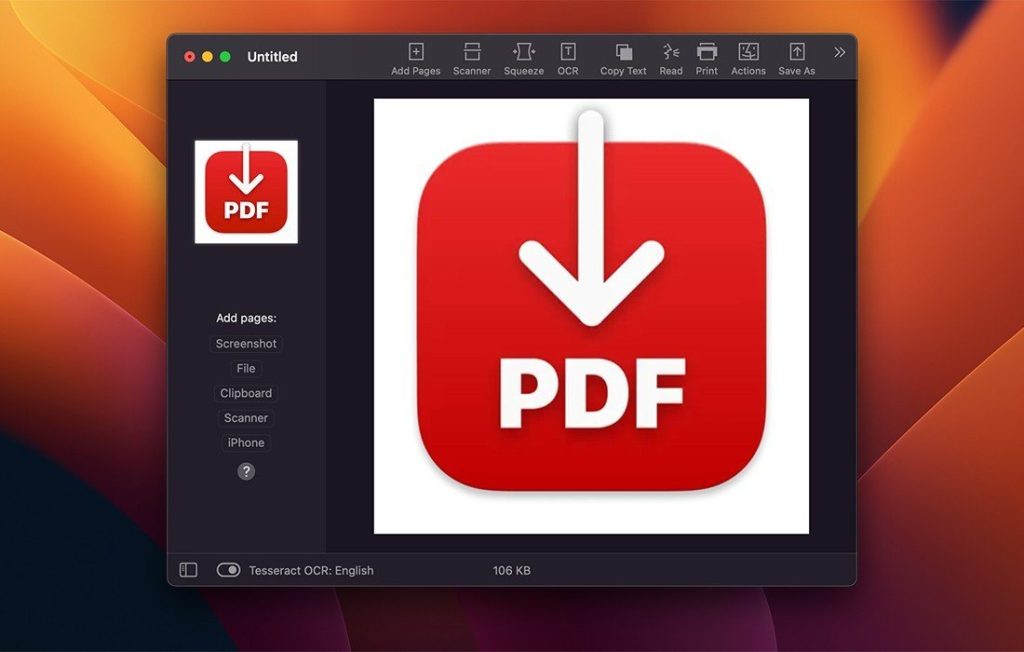
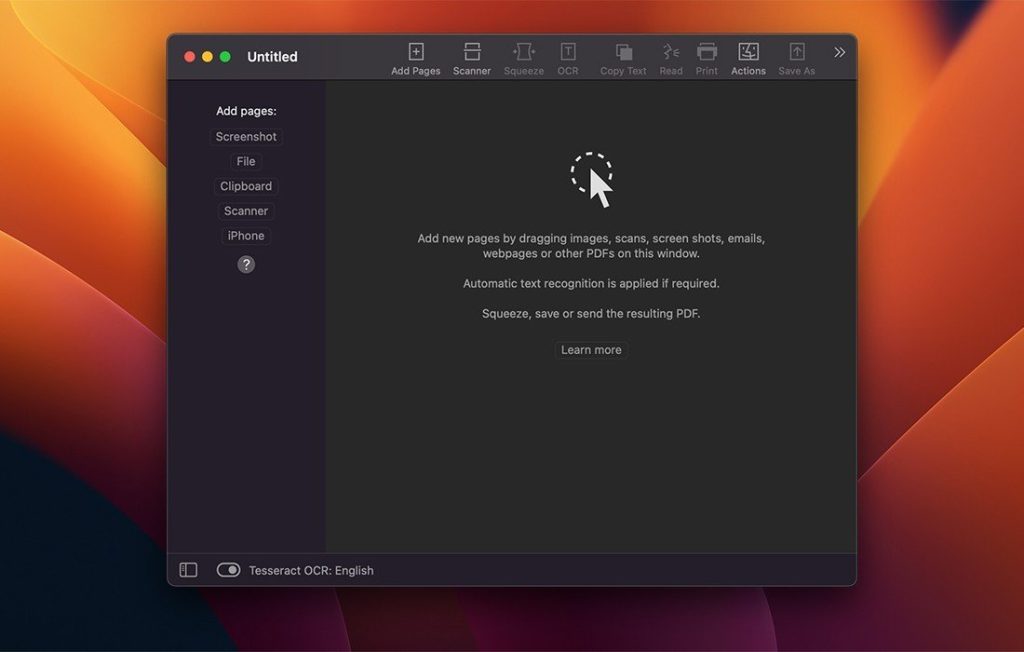
Installation & Troubleshooting FAQ 7 questions
Common issues when installing macOS apps
How do I disable SIP and grant Terminal Full Disk Access?
System Integrity Protection (SIP) shields core macOS files from modification. Some patched apps and installers need SIP disabled temporarily.
Boot into Recovery Mode (hold Cmd+R), open Terminal from Utilities, run csrutil disable and restart.
macOS also blocks Terminal from protected folders until Full Disk Access is granted. Go to System Settings → Privacy & Security → Full Disk Access and toggle Terminal on.
How to disable Gatekeeper and remove quarantine?
Gatekeeper and quarantine can stop modified apps with “damaged” or “unidentified developer” warnings.
To disable Gatekeeper: sudo spctl --master-disable
To remove quarantine from a specific app: xattr -rd com.apple.quarantine /Applications/AppName.app
What to use instead of Launchpad on macOS 26?
Launchpad changed in macOS 26, so opening and organizing apps works differently.
Use Spotlight (Cmd+Space) to search and launch any app instantly. Third-party launchers like Alfred or Raycast are also excellent alternatives. You can also pin frequently used apps directly to your Dock for one-click access.
Why do I see security warnings when opening an app?
“App Not Downloaded from Mac App Store” — macOS blocks the app when security settings only allow App Store downloads. Go to Privacy & Security and permit apps from identified developers.
“Unidentified developer” — apps not registered with Apple trigger this on first launch. Use Control-click → Open to add a one-time security exception.
“Cannot verify for malicious software” — use Open Anyway in Privacy & Security to approve the app once.
What if the app is damaged or disk image is corrupted?
“App is damaged and can’t be opened” — quarantine flags or post-download changes trigger this error. Fix it with: xattr -cr /Applications/AppName.app
“Disk image corrupted” — incomplete or interrupted downloads often cause corrupted DMG errors. Use a download manager with resumable downloads to get a clean installer file.
How to fix Adobe app installation errors?
Adobe Creative Cloud local installers may fail from the GUI — right-click Install, open Contents/MacOS, and run the Unix executable manually to start the setup.
Adobe Error 1 (Rosetta required) appears on Apple Silicon when Rosetta is missing. Install it with: /usr/sbin/softwareupdate --install-rosetta --agree-to-license
CCXProcess install errors mean Creative Cloud cannot run Intel code on Apple Silicon without Rosetta — install Rosetta the same way, then retry.
Why can’t I install this app on an Intel Mac?
Some releases support only Apple Silicon (M1, M2, M3 and newer) and cannot install on Intel Macs due to architecture mismatch.
Look for universal builds or older releases matched to your processor. Tools like Adobe Activation Tool, QiuChenly, or RiD may offer Intel-compatible versions.
